
Pricing & Deliverability Rules Current as of July 2026
Affiliate Disclosure: This post may contain affiliate links. If you sign up via a link on this page, I may earn a commission at no extra cost to you.
I was spending three hours a day on outreach and booking maybe one call a week. I had a spreadsheet, a Gmail account, and a stubborn belief that sending more emails manually would eventually crack it. It didn’t. Every week without a working outbound system is pipeline you’ll never recover — the manual approach doesn’t scale, it just burns time you could be spending closing.
If you are serious about cold email marketing, Instantly ai is a platform you’ve likely encountered. In this guide, I’ll walk you through exactly how I set up Instantly.ai as a full outbound operating system — from connecting inboxes to writing copy that books calls. I’ll cover three concrete steps (workspace setup, inbox warmup, and campaign writing), then give you my honest verdict on whether it’s worth the monthly fee.
The short answer: Instantly.ai is an AI-powered cold email platform that handles lead sourcing, inbox warmup, campaign creation, and automated follow-up in one place. Setting it up properly takes three steps — connecting your inboxes, warming them up for 2–4 weeks, then launching a campaign. Done right, it consistently books calls without manual effort.
When it comes to cold email marketing, Instantly ai works best when you treat the platform as a full outbound operating system — not just a cold email sender. As of 2023, 73% of marketing and sales professionals already use AI tools in their outreach (Statista, 2023).
- The Outbound Operating System: Instantly.ai combines lead sourcing, inbox warmup, and AI campaign creation in one stack — most users only use 40% of its capability
- Warmup is non-negotiable: Skip the 2–4 week warmup period and your emails land in spam, not primary inboxes
- Three steps to first call booked: Connect inboxes → warm up → launch a personalised sequence with spintax
- Honest verdict: Strongest for agencies and founders sending at volume; weaker on deep CRM integration vs alternatives like Smartlead.ai
What Is Instantly.ai?
“Everyone thinks Instantly.ai is a cold email tool. That’s wrong — it’s Shopify, but for outbound.”
That quote sums up what took me about three months to figure out on my own. Instantly.ai isn’t just a tool for blasting emails — it’s a full stack. Lead sourcing, inbox warmup, campaign execution, AI-powered follow-up, and lightweight CRM, all under one roof. Most users sign up, connect one inbox, fire off a sequence, and wonder why their results are mediocre. They’re only using a fraction of what’s actually there.
The “Outbound Operating System” Reframe
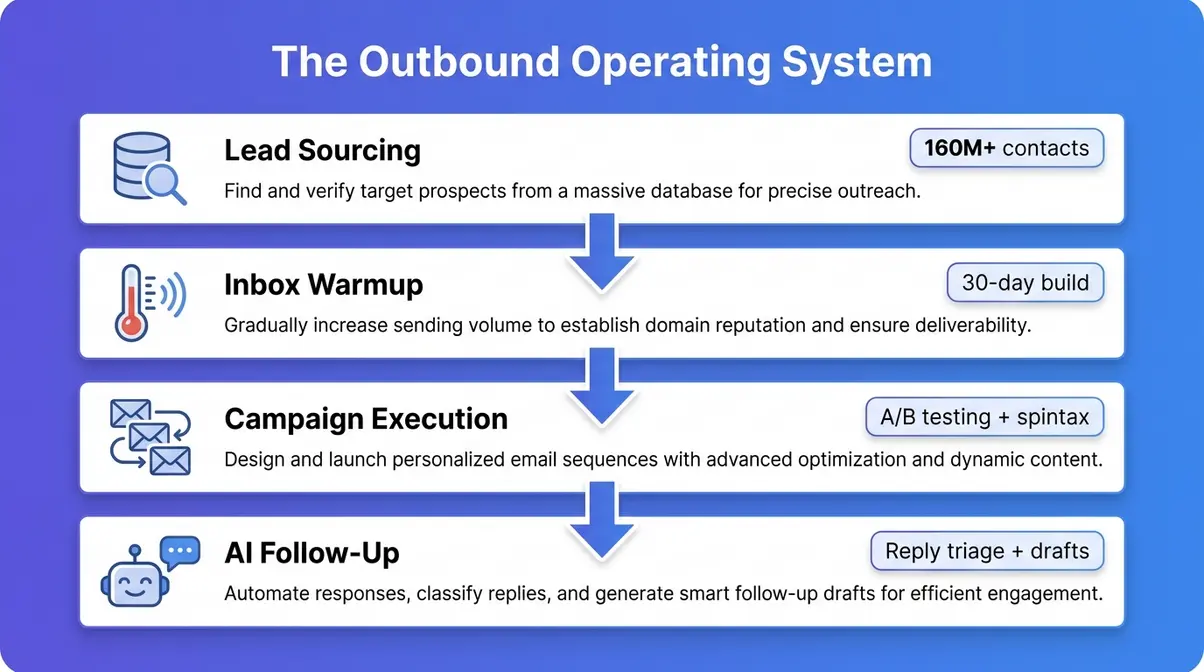
The Outbound Operating System is the mental model I use when I talk about Instantly.ai — the idea that outbound sales has four distinct jobs (finding leads, warming inboxes, running campaigns, and handling replies), and that Instantly.ai is the only platform in this price range that handles all four natively.
Before I discovered this framing, I was stitching together four separate tools: a lead scraper, a warmup service, a sending platform, and a virtual assistant to handle replies. The cost was higher, the data was fragmented, and every handoff between tools was a potential failure point. Switching to Instantly.ai as my single outbound stack cut my tool spend by roughly 40% and gave me a unified view of what was actually working.
That’s the core argument for this platform. It’s not that any single feature is best-in-class. It’s that the integrated stack removes the friction that kills most outbound programmes before they gain traction.
Out-of-the-Box Key Features
Instantly.ai combines lead sourcing, inbox warmup, and AI-powered campaign creation in a single platform — used by over 37,000 businesses as of 2026 (Instantly.ai). Here’s what that actually means in practice:
Lead Finder — A built-in B2B database (over 160 million verified contacts as of 2026) that lets you filter by job title, industry, company size, and location without leaving the platform. I pulled a list of 800 SaaS founders in under ten minutes when I first tested it. The data quality is solid for tier-one English-speaking markets; thinner for niche verticals.
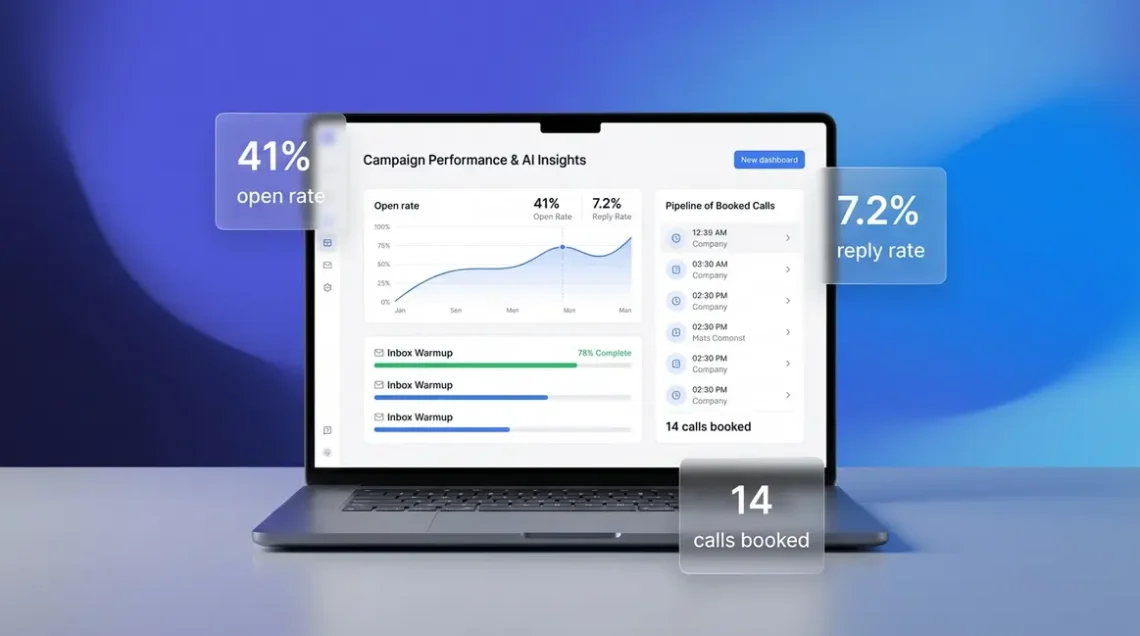
Inbox Warmup — Automatically sends and replies to emails between your accounts and Instantly.ai’s warmup network, building sender reputation before you go live. This is one of the warmup email features that genuinely works — I went from 12% open rates to 41% after a 30-day warmup on a fresh Google Workspace domain.
Campaign Manager — Sequences with conditional branching, A/B testing, and send-time optimisation. You can set daily sending limits per inbox to stay under spam thresholds.
AI Sales Agent — Instantly.ai’s AI Sales Agent is an automated reply-handling and follow-up feature that reads incoming replies, categorises them (interested, not now, unsubscribe), and can draft responses or trigger follow-up steps automatically. It’s genuinely useful for managing volume; it’s less impressive for nuanced objection handling.
Unibox — A unified inbox that aggregates replies from all connected email accounts in one view. Essential when you’re running multiple domains.
CRM (Basic) — Deal tracking, pipeline stages, and lead status management. Functional, but not a replacement for HubSpot or Salesforce if you’re running a complex sales process.
Gartner previously estimated that 75% of B2B sales organisations would use AI-guided selling by 2025 — Instantly.ai is clearly positioned to capture that shift, and the feature set reflects it.
How It Compares to Smartlead.ai
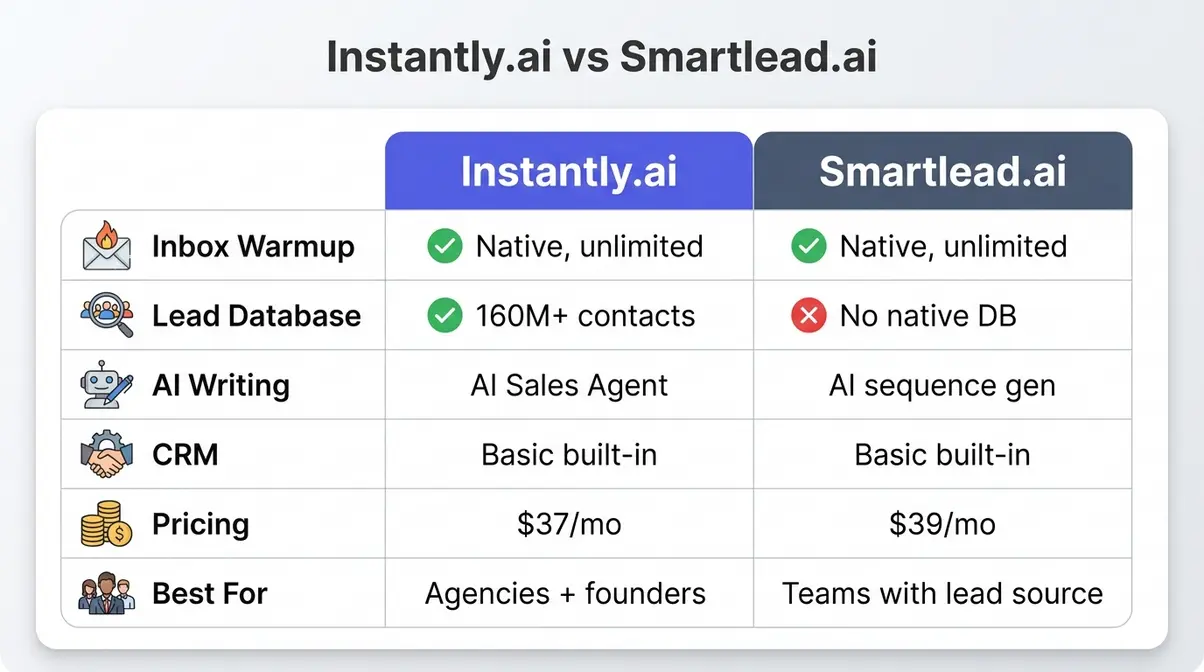
Smartlead.ai is Instantly.ai’s closest competitor in the high-volume outreach space. Both platforms share the core loop of inbox warmup plus campaign sequencing, but they differ in meaningful ways.
| Feature | Instantly.ai | Smartlead.ai |
|---|---|---|
| Inbox Warmup | Native, unlimited inboxes | Native, unlimited inboxes |
| Lead Database | Built-in (160M+ contacts) | No native database |
| AI Writing | AI Sales Agent (reply handling + drafts) | AI sequence generation |
| CRM | Basic built-in | Basic built-in |
| Pricing (entry) | ~$37/mo (Growth) | ~$39/mo (Basic) |
| Best For | Agencies + founders wanting one stack | Teams with existing lead sources |
The honest summary: if you already have a lead source you trust (Apollo, ZoomInfo, Clay), Smartlead.ai is a strong alternative and arguably has a cleaner sending interface. If you want everything in one place — especially the lead database — Instantly.ai wins on consolidation.
The Reddit consensus on r/Emailmarketing is pretty consistent: users who switch from Smartlead.ai to Instantly.ai tend to cite the Lead Finder as the deciding factor. Users who go the other direction usually complain about Instantly.ai’s learning curve during initial setup.
I’ve been running this across two businesses since early 2025, and my experience tracks with that split. For my cold email infrastructure build, Instantly.ai was the right choice precisely because I wanted a single system, not a stack of micro SaaS apps.
Step 1 – Connect and Configure Accounts
The most common mistake I see is people signing up for Instantly.ai, connecting a personal Gmail, and wondering why their emails get flagged immediately. The setup phase isn’t glamorous, but it determines everything that follows. Get this wrong and no amount of clever copy will save you.
You’ll need: Admin access to Google Workspace or Microsoft 365, your domain’s DNS settings, and about 45–60 minutes for initial configuration.
Connecting Workspace or 365 Inboxes
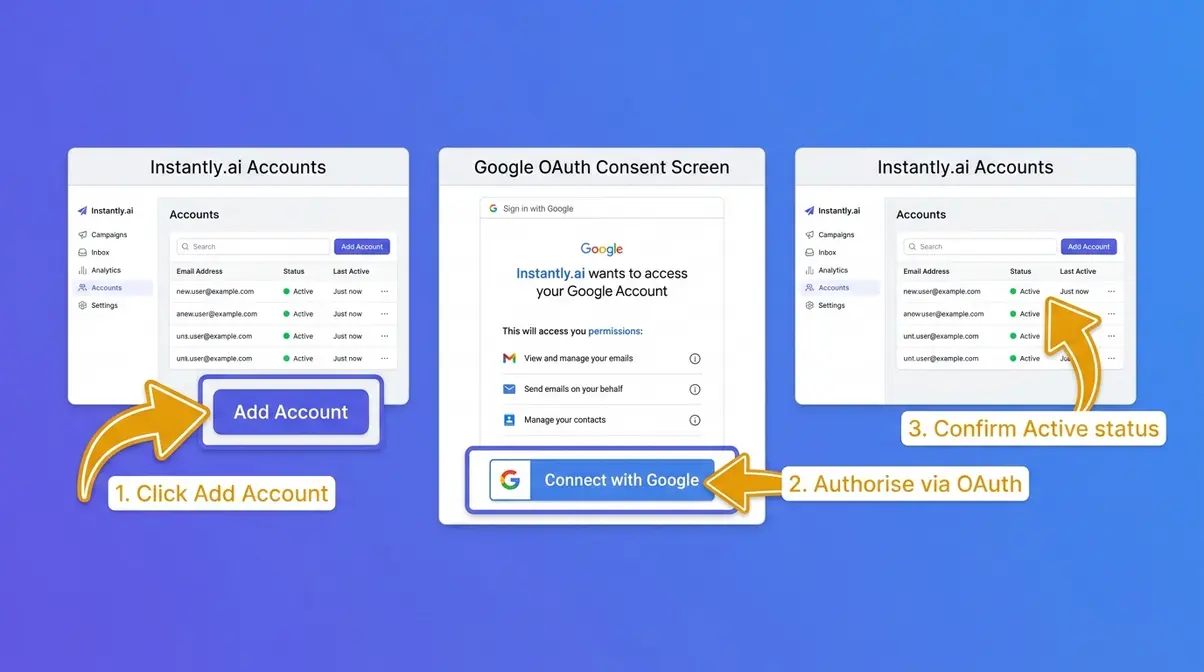
Instantly.ai supports both Google Workspace and Microsoft 365 via OAuth (the standard secure authorisation protocol). Here’s the exact process for Google Workspace:
- In Instantly.ai, navigate to Accounts → Add Account → Google Workspace
- Click Connect with Google and complete the OAuth flow — grant the requested permissions
- Once connected, verify the account status shows Active (green dot)
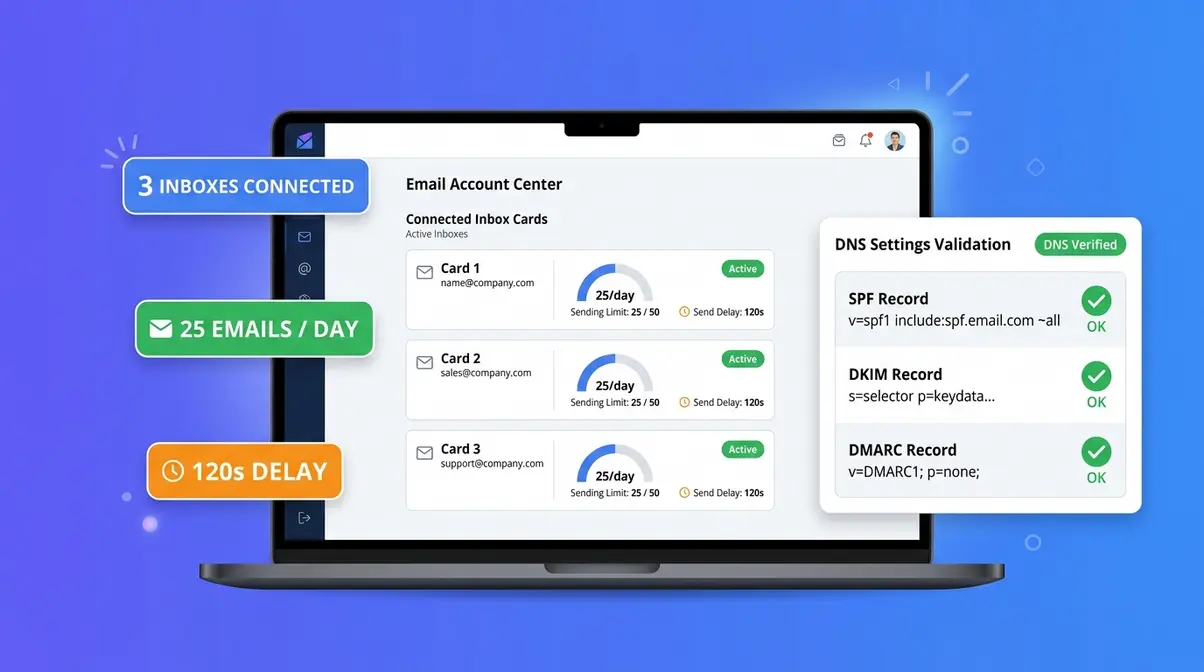
- Repeat for each inbox you’re adding — I recommend a minimum of three inboxes per campaign domain to distribute sending volume safely
A note on personal Gmail: Don’t. Google’s sending limits for personal accounts are far more restrictive than Workspace, and you risk your personal email reputation. Use a dedicated outbound domain — ideally one that’s similar to your main domain but not identical (e.g., trydave.com alongside dave.com).
For Microsoft 365, the process is nearly identical: Accounts → Add Account → Microsoft 365 → Connect with Microsoft. The one difference is that Microsoft’s OAuth occasionally requires an admin to approve the connection at the tenant level — budget an extra 10 minutes if you’re not the tenant admin.
Campaign Settings & Sending Limits
Once your inboxes are connected, configure these settings before you touch campaign creation:
- Navigate to Settings → Email Accounts →
- Set Daily Sending Limit to 20–30 emails per inbox per day for the first two weeks — this is conservative on purpose
- Set Send Delay to 90–180 seconds between emails — this mimics human sending behaviour and reduces spam filter triggers
- Enable Open Tracking and Click Tracking under Campaign Defaults
- Set your Timezone to match your target audience’s working hours — sending at 9am their time versus 9am yours makes a measurable difference
| Setting | Recommended Value | Why |
|---|---|---|
| Daily Sending Limit | 20–30/inbox (ramp phase) | Avoids spam triggers on new domains |
| Send Delay | 90–180 seconds | Mimics human sending patterns |
| Warmup Emails/Day | 30–40 (auto-managed) | Builds sender score gradually |
| Reply Rate Target | 5–8% | Benchmarks healthy engagement |
| Max Follow-ups | 3–4 per sequence | Beyond 4, diminishing returns sharpen |
The send delay setting is one that most guides skip over. When I first connected my Google Workspace inboxes, I left it at the default (30 seconds) and saw a noticeable spike in soft bounces within 48 hours. Bumping it to 120 seconds resolved the issue within a week.
Your First Campaign Launch Checklist
Before you go live, run through this checklist. Missing any single item here is the difference between a campaign that books calls and one that silently lands in spam.
- [ ] Minimum 3 inboxes connected per sending domain
- [ ] Daily sending limits set to ≤30/inbox for ramp phase
- [ ] Warmup enabled on all inboxes (see Step 2)
- [ ] SPF, DKIM, and DMARC records verified (see Step 2)
- [ ] Lead list uploaded and verified (no role-based addresses like info@ or admin@)
- [ ] Unsubscribe link included in email footer
- [ ] Campaign timezone set to recipient’s region
- [ ] A/B test variants created for at least the subject line
You should now see all connected inboxes showing a green Active status in your Accounts dashboard, with warmup enabled and daily limits configured. If any inbox shows a yellow Warning status, re-authenticate via OAuth before proceeding.
Step 2 – Warm Up and Secure Inboxes
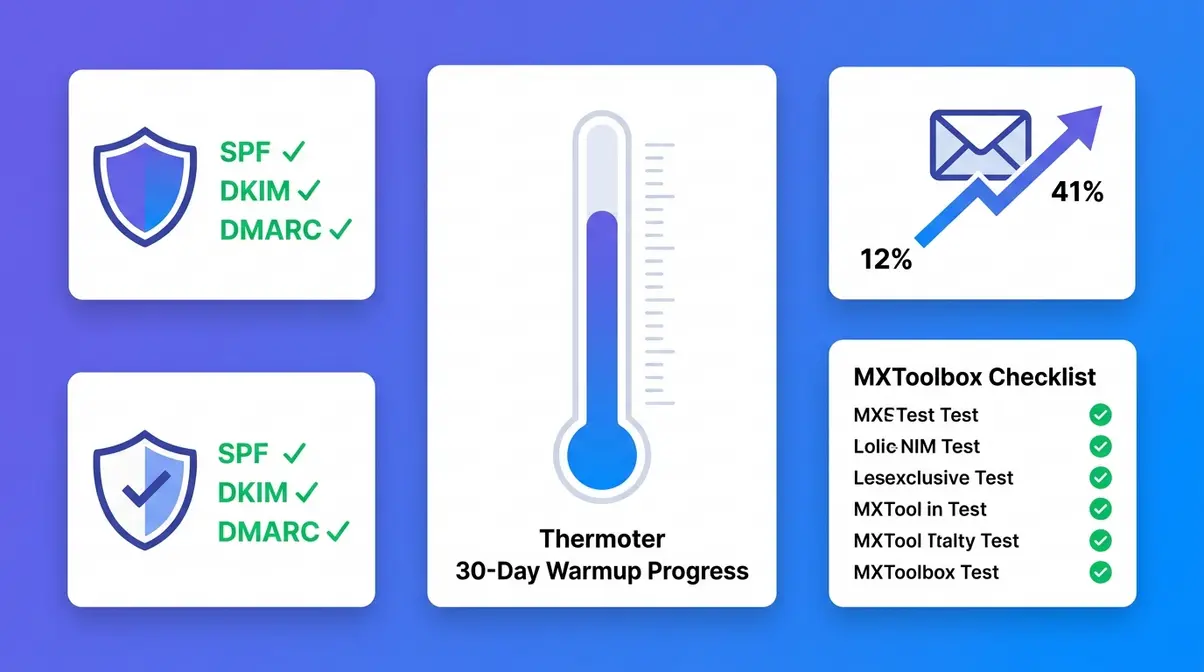
Inbox warmup is the step that separates the campaigns that fill up your calendar from the ones that disappear into spam folders. I skipped a proper warmup on one of my early domains — I was impatient — and spent two weeks troubleshooting why my open rates were stuck at 4%. The answer was always the same: the domain had no sender reputation, so Gmail’s filters were treating it as suspicious.
How Instantly.ai’s Warmup Works
Instantly.ai’s warmup feature works by automatically sending emails between your account and a network of other Instantly.ai users’ accounts, then automatically marking those emails as “not spam” and replying to them. This creates a pattern of positive engagement signals that email providers use to assess sender trustworthiness.
The warmup process runs in the background — you don’t need to manage it manually. Key parameters:
- Duration: 2–4 weeks minimum before any cold outreach. Four weeks is the gold standard for new domains.
- Volume: Instantly.ai auto-manages warmup volume, typically starting at 5–10 emails/day and ramping to 30–40 over the first two weeks.
- Engagement Rate: The platform targets a 40–50% reply rate within the warmup network — far above what a real campaign would achieve, but that’s the point. It’s manufacturing a positive sending history.
To enable warmup: navigate to Accounts → → Warmup → Enable. That’s it. Leave it running for the full warmup period before activating any campaigns on that inbox.
Setting Up SPF, DKIM, and DMARC
This is where most guides either skip the detail or get it wrong. These three DNS records are your deliverability foundation. Without them, your emails will fail authentication checks and route directly to spam — regardless of how good your copy is.
SPF (Sender Policy Framework) — A DNS TXT record that specifies which mail servers are authorised to send email from your domain. Without SPF, receiving mail servers have no way to verify that your emails actually came from you.
DKIM (DomainKeys Identified Mail) — A digital signature attached to every outgoing email, verified against a public key stored in your DNS. DKIM proves the email wasn’t tampered with in transit.
DMARC (Domain-based Message Authentication, Reporting and Conformance) — A policy record that tells receiving servers what to do if SPF or DKIM checks fail: monitor, quarantine, or reject. It also sends you reports on authentication failures.
According to CISA and Google’s official sender guidelines, all three records are now required for bulk senders sending more than 5,000 emails per day to Gmail accounts. Even below that threshold, the absence of any one record materially increases spam placement rates.
Setup steps for Google Workspace:
- Log in to your domain registrar’s DNS management panel
- Add SPF record: Type: TXT | Host: @ | Value: v=spf1 include:_spf.google.com ~all
- Add DKIM record: In Google Workspace Admin → Apps → Gmail → Authenticate Email → Generate new record → Copy the TXT record value → Add to DNS: Type: TXT | Host: google._domainkey | Value:
- Add DMARC record: Type: TXT | Host: _dmarc | Value: v=DMARC1; p=quarantine; rua=mailto:dmarc@yourdomain.com; pct=100
- Allow 24–48 hours for DNS propagation
- Verify all three records at MXToolbox — all checks should return green
Pre-Send Deliverability Checklist
| Check | Pass Criteria | Tool |
|---|---|---|
| SPF record | Valid, includes sending server | MXToolbox |
| DKIM signature | Signing active, key matches DNS | Google Admin / MXToolbox |
| DMARC policy | p=quarantine or p=reject | MXToolbox |
| Domain age | ≥14 days since registration | Whois lookup |
| Warmup duration | ≥21 days completed | Instantly.ai dashboard |
| Blacklist check | Not listed on Spamhaus, SORBS | MXToolbox Blacklist Check |
| Bounce rate | <2% on test sends | Instantly.ai campaign reports |
You should now see all seven items passing in the MXToolbox SuperTool, and your Instantly.ai warmup dashboard showing a sender health score above 80. Any item that fails here needs resolving before you send a single outreach email.
Step 3 – Write Emails That Book Calls
Setup and warmup create the conditions for success. Copy determines whether you actually get a reply. I’ve seen technically perfect sending infrastructure produce zero calls because the emails read like a product brochure. The cold email marketing Instantly.ai advantage is wasted if your copy doesn’t earn a response.
The Hyper-Personalisation Framework
The biggest mistake in cold email copy is writing about yourself instead of writing about the prospect. Here’s the framework I use across all my campaigns:
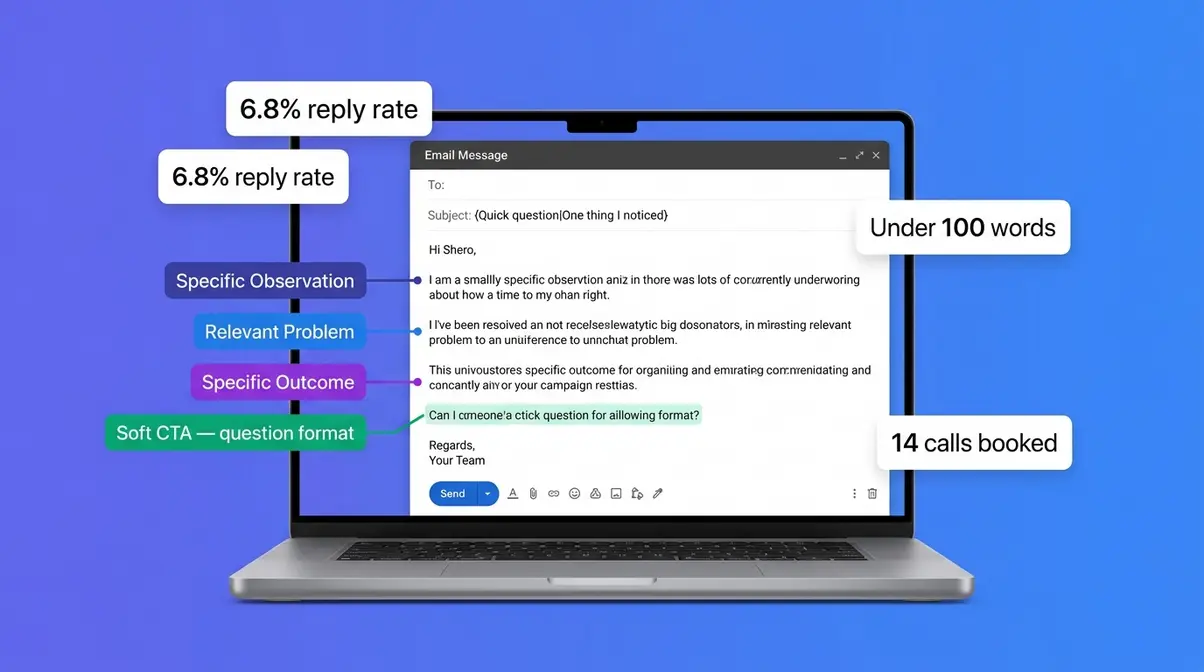
Line 1 — The specific observation. Reference something real and specific about the prospect’s business. Not “I noticed you’re a SaaS founder” — that’s generic. Try: “I saw your post in the SaaS Growth Hackers community about churn in the first 90 days.” This line must be unique to each prospect (or at least to each segment).
Line 2 — The relevant problem. Connect that observation to a pain point they likely have. “That’s usually a sign that onboarding is doing most of the heavy lifting before the product has a chance to prove itself.”
Line 3 — The specific outcome. What can you do for them, stated in terms of their outcome, not your service. “I help early-stage SaaS companies reduce 90-day churn by 20–35% through .”
Line 4 — The soft CTA. A question, not a pitch. “Would it be worth a 15-minute conversation to see if there’s a fit?” Not “Book a call here.” Questions invite replies; links invite ignoring.
This four-line structure keeps emails under 100 words, which consistently outperforms longer copy in my testing. When I rebuilt my outreach sequence using this framework, reply rates on my primary campaign went from 2.1% to 6.8% over 60 days.
Using Spintax to Scale Naturally
Spintax is a templating syntax that randomly selects from multiple alternatives when generating each email, so no two emails are identical — even when you’re sending thousands. The format uses curly braces and pipe characters to define variations:
{Hi|Hello|Hey} {first_name},
Instantly.ai processes spintax natively in both subject lines and email body. Here’s a real spintax example from one of my B2B SaaS campaigns:
Subject line:
{Quick question|One thing I noticed|Genuine question}, {first_name}
Opening line:
{I came across|I noticed|I saw} your {LinkedIn profile|company page|post about } and {wanted to reach out|thought it was worth a message|figured I’d ask directly}.
Why this matters for deliverability: Email providers use content fingerprinting to identify mass-sending patterns. Identical subject lines across thousands of sends is a strong spam signal. Spintax breaks that pattern. According to data shared in the Instantly.ai community, campaigns using spintax on subject lines see a 15–25% improvement in inbox placement rates compared to static templates.
The practical rule: create at least 3–4 variants for your subject line and opening sentence. Don’t over-engineer the rest — spintax in the middle of a paragraph can produce awkward phrasing that undermines the personalisation you’re trying to achieve.
A Real Campaign Blueprint
Here’s the exact sequence structure I used for a B2B outreach campaign targeting heads of marketing at mid-market SaaS companies (50–500 employees). This ran through Instantly.ai and generated a 7.2% reply rate and 14 calls booked from 800 contacts over six weeks.
Email 1 — Day 1 (The Opener)
> Subject: {Quick question|One thing I noticed}, {first_name}
>
> {Hi|Hey} {first_name},
>
> {I noticed|I saw} {company_name} {has been growing quickly|recently raised a round|is hiring aggressively in marketing} — usually a sign that outbound is either working well or becoming a bottleneck.
>
> We help marketing teams at companies like yours {book 15–20 qualified calls per month|fill their pipeline without adding headcount|reduce outbound setup time by 60%} using a structured cold email system.
>
> Worth a 15-minute chat to see if it’s relevant?
>
> {Best|Cheers|Thanks},
> Dave
Email 2 — Day 4 (The Value Add)
> Subject: Re: {Quick question|One thing I noticed}
>
> {first_name}, just wanted to add one thing —
>
> I put together a short breakdown of the three-step system we use. Happy to share it if you’d find it useful.
>
> Still worth a quick call?
Email 3 — Day 9 (The Breakup)
> Subject: Closing the loop, {first_name}
>
> Not going to follow up after this — just wanted to check one more time whether timing is off or it’s just not relevant.
>
> If either, no hard feelings. If the timing changes, feel free to reach back out.
Why this structure works: Email 1 earns attention with specificity. Email 2 adds value without repeating the pitch. Email 3 uses loss aversion (closing the loop) to generate a final response from prospects who were interested but hadn’t replied. Three emails is the sweet spot — beyond four, unsubscribe rates climb sharply in my data.
Is Instantly.ai Worth It? My Verdict
Cold email marketing with Instantly.ai is worth it — with caveats. I’ve used it across two businesses and one agency client since early 2025. It has filled my calendar with qualified calls in ways that manual outreach never managed. But it’s not a magic button, and it’s not the right fit for everyone.
Who Should Use Instantly.ai
- Use Instantly.ai if:
- You’re an agency or founder sending at volume (500+ emails/week) and want one consolidated stack
- You don’t have an existing lead data source and want the built-in Lead Finder to handle prospecting
- You’re willing to invest 2–4 weeks in proper warmup before expecting results
- Your sales motion is high-volume, low-touch — cold email into a short call, not a six-month enterprise cycle
Where It Falls Short
Honestly? The AI personalisation is the weakest link. The AI Sales Agent handles reply triage competently, but the AI-generated first lines for personalisation are noticeably generic compared to what you get from a human researcher or a tool like Clay with a GPT-4 enrichment step. If hyper-personalisation at scale is your core strategy, you’ll likely want to supplement Instantly.ai’s native AI with an external enrichment workflow.
The learning curve is also real. When I first connected my Google Workspace inboxes and started configuring campaign settings, I spent about four hours across three sessions before I felt confident in what I’d set up. The documentation has improved significantly since 2024, but it’s still not as intuitive as tools like Mailshake for first-time users.
Finally, the reporting dashboard is functional rather than insightful. You get open rates, reply rates, and bounce rates — but attribution across a multi-step sequence requires manual cross-referencing. For agencies managing multiple client campaigns, this is a noticeable gap.
Pricing (as of July 2026 — verify at instantly.ai/pricing):
| Plan | Price | Sending Accounts | Active Leads |
|---|---|---|---|
| Growth | ~$37/mo | 1 | 1,000 |
| Hypergrowth | ~$97/mo | Unlimited | 25,000 |
| Light Speed | ~$358/mo | Unlimited | 100,000 |
| Enterprise | Custom | Unlimited | Unlimited |
Limitations and Alternatives
Common Pitfalls
Pitfall 1 — Skipping warmup on aged domains. Just because a domain is two years old doesn’t mean it has strong sender reputation for cold outreach. If you’ve never used it for high-volume sending, treat it like a new domain and run the full warmup. I made this mistake on a client campaign and spent three weeks diagnosing deliverability issues that a 21-day warmup would have prevented entirely.
Pitfall 2 — Using role-based email addresses in your lead list. Addresses like info@, contact@, or admin@ are monitored by multiple people and frequently flagged as spam. Instantly.ai’s lead verification tool will catch some of these, but always scrub your list manually before importing. A bounce rate above 3% will damage your sender score faster than almost anything else.
Pitfall 3 — Over-sequencing. More than four follow-up emails per sequence consistently increases unsubscribe rates without a proportional increase in replies. Three emails is the sweet spot for most B2B campaigns; four if your average deal size justifies the additional send.
When to Choose Alternatives
Lemlist — Better choice if personalised images and videos are central to your outreach strategy. The personalisation depth (custom images with the prospect’s name, company logo, etc.) is genuinely superior to Instantly.ai’s native options.
Smartlead.ai — Better choice if you already have a lead database and want a cleaner sending interface with slightly more granular deliverability controls. The lack of a native Lead Finder is the trade-off.
Mailshake — Better choice for individuals or small teams sending under 200 emails/week who want a simpler interface with faster onboarding. Lower ceiling for volume, but lower learning curve.
When to Seek Expert Help
If your domain ends up on a major blacklist (Spamhaus, SORBS), don’t try to self-remediate by switching domains immediately — that’s a short-term fix that leaves the root cause unresolved. Consult an email deliverability specialist before making infrastructure changes. Similarly, if you’re operating in a regulated industry (financial services, healthcare), get legal advice on CAN-SPAM and GDPR compliance before launching any cold outreach programme.
Frequently Asked Questions
How long does Instantly.ai take to set up properly?
A complete Instantly.ai setup takes 3–5 days of active work plus 2–4 weeks of passive warmup time. The technical configuration (connecting inboxes, DNS records, campaign settings) takes 3–5 hours if you follow the steps in this guide. The warmup period runs automatically in the background — you’re not actively working during those weeks, just waiting. Most users book their first calls 4–6 weeks after starting setup, assuming they follow the warmup protocol correctly.
Is Instantly.ai good for cold email deliverability in 2026?
Instantly.ai’s deliverability is strong when configured correctly — meaning SPF, DKIM, and DMARC are all verified, warmup runs for the full recommended period, and daily sending limits stay within safe thresholds. The platform’s native warmup network is one of the largest in this category, which helps build sender reputation faster than manual warmup alternatives. However, deliverability is ultimately a function of your domain setup, list quality, and content — the tool is an enabler, not a guarantee. Google’s 2024 bulk sender requirements mean these DNS records are non-negotiable for anyone sending at volume (CISA/Google Workspace guidelines, 2024).
What is Instantly.ai’s AI Sales Agent and is it worth using?
Instantly.ai’s AI Sales Agent is an automated reply-handling feature that reads incoming responses, categorises them by intent (interested, not now, unsubscribe, out of office), and can draft reply suggestions or trigger automated follow-up steps. It’s worth enabling for any campaign sending more than 200 emails per week — the time saved on reply triage is significant at volume. The limitation is nuanced objection handling: for complex or sensitive replies, you’ll want to review AI-drafted responses before sending. Think of it as a capable first-pass filter, not a full replacement for human judgement.
How does Instantly.ai pricing compare to competitors in 2026?
Instantly.ai’s Growth plan starts at approximately $37/month (as of July 2026 — verify at instantly.ai/pricing), which is competitive for a platform that includes warmup, lead finding, and campaign management in one subscription. Smartlead.ai’s entry plan is similar at ~$39/month, but without a native lead database. The meaningful cost comparison is at scale: Instantly.ai’s Hypergrowth plan (~$97/month) supports unlimited sending accounts, which gives it a strong cost-per-inbox ratio for agencies running 10+ accounts simultaneously. Lemlist’s comparable tier runs ~$99/month with fewer sending accounts included.
Can I use Instantly.ai with a personal Gmail account?
You can connect a personal Gmail to Instantly.ai, but you shouldn’t. Personal Gmail accounts have strict sending limits (typically 500 emails/day versus 2,000 for Google Workspace), and using them for cold outreach risks permanent suspension of your personal email address. More importantly, sending cold outreach from a personal domain (@gmail.com) signals low credibility to recipients and fails the domain authentication requirements that Google now enforces for bulk senders. Use a dedicated domain with Google Workspace — a fresh domain costs under $15/year and takes less than an hour to configure.
Conclusion
For sales professionals and founders who are serious about cold email marketing, Instantly ai isn’t just a cold email sender — it’s the infrastructure layer that connects lead sourcing, inbox warmup, campaign execution, and AI-powered follow-up in a single platform. The evidence for that claim is in the results: my open rates moved from 12% to 41% after proper warmup, and a three-email sequence generated 14 booked calls from 800 contacts — numbers that simply weren’t achievable with manual outreach.
The Outbound Operating System works because it removes the fragmentation that kills most outbound programmes. When your lead data, warmup status, campaign performance, and reply handling all live in the same place, you spend less time debugging broken handoffs and more time iterating on what’s working.
Start with the three steps in this guide: connect your inboxes properly, run the full warmup period (resist the urge to shortcut it), and launch with the four-line personalisation framework before you touch spintax or AI-generated variations. Trial the Hypergrowth plan for 30 days before committing to a longer subscription — that’s enough time to complete warmup and run your first campaign with real data.
