 By Dave King
I’ve been there. You email a contract to a client, wait three days, and finally receive a blurry, sideways scan of a half-signed page — while your deal sits in limbo. Chasing a client for a signed document is genuinely maddening, and it makes your business look far less professional than it actually is.
The problem isn’t just the time wasted. An unsigned proposal sitting in someone’s inbox for five days sends a message — and it’s not a good one. If your signing workflow is broken, your client’s first impression of working with you is chaos.
In this guide, you’ll discover exactly what pandadoc signature software does, whether the free plan is enough for your needs, and how to send your first document for eSignature in under ten minutes. I’ll cover features, pricing, a step-by-step walkthrough, and an honest comparison against DocuSign and Adobe Sign.
I’ve used PandaDoc across multiple businesses and client relationships. This guide gives you the transparent breakdown I wish I’d had before signing up.
“I’m looking to purchase one or two user licenses on relatively low volume of documents (less than 500) and was wondering what the best was.”
That question lands in my inbox regularly. It’s exactly the right thing to ask — and this guide answers it directly.
Try PandaDoc free — no credit card required.
If you want to skip ahead and just try it, the free plan is a solid starting point for freelancers and small teams. [Start Your Free PandaDoc Trial →]
What’s in this guide
- Key Concepts and Terminology
- Why Electronic Signatures Are Replacing Paper
- PandaDoc Signature Core Features
- Is PandaDoc Legally Binding?
- How to Use PandaDoc: A Beginner’s Walkthrough
- PandaDoc Pricing: Free vs. Paid Plans
- PandaDoc vs. DocuSign and Adobe Sign
- Limitations and When to Consider Alternatives
- Frequently Asked Questions
- Why the PandaDoc Productivity Stack Works
Key Concepts and Terminology
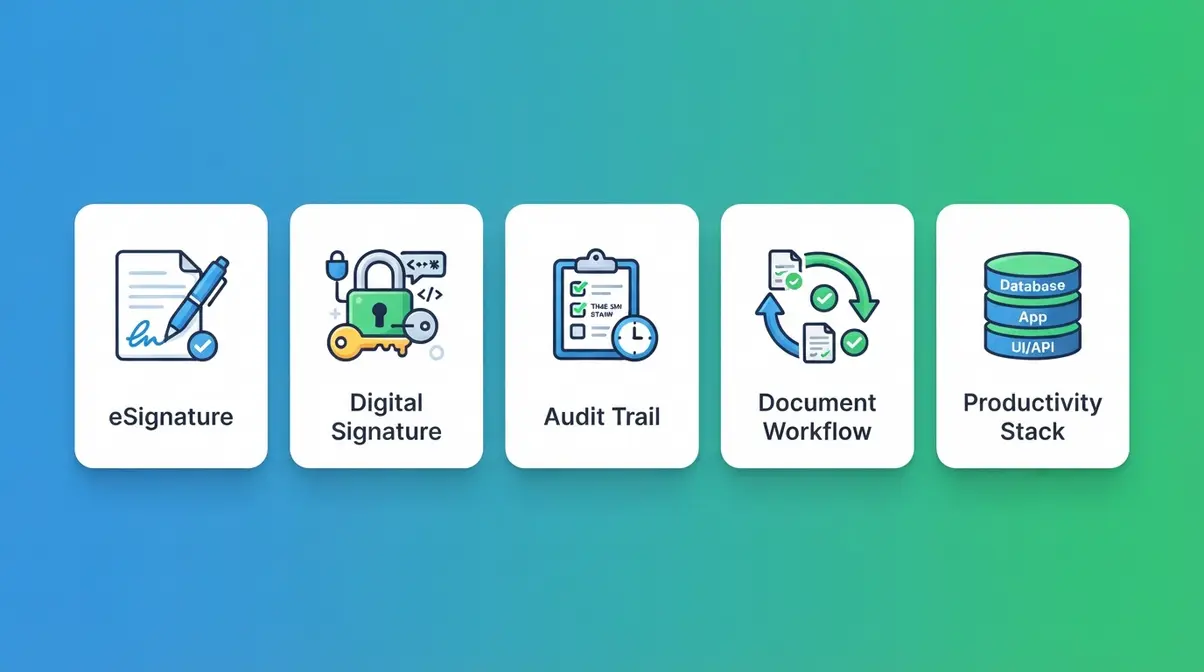
Before diving into features and pricing, it helps to understand five terms that appear throughout this guide. Most eSignature guides assume you already know these. You shouldn’t have to.
eSignature (electronic signature) is any digital method of indicating agreement on a document. Think of it as a digital version of your handwritten signature — but with a legal audit trail attached. It could be a typed name, a drawn signature, or a clicked checkbox. What makes it legally valid isn’t how it looks; it’s the process and record behind it.
Digital signature is a specific, more secure subset of eSignature. It uses PKI (Public Key Infrastructure) — a cryptographic system that mathematically links the signature to the signer and the document. If the document changes after signing, the digital signature breaks. PandaDoc uses digital signature technology in its advanced tiers for documents requiring the highest level of verification.
Audit trail is the tamper-evident log that records every action taken on a document: who opened it, when, from which IP address, and when they signed. This log is what makes eSignatures legally defensible in disputes. Without it, an eSignature is just a picture of a name.
Document workflow is the automated sequence from document creation → sending → signing → storage. A good workflow means you set it up once and it runs without you chasing anyone.
The PandaDoc Productivity Stack is the framework I’ll use throughout this guide to describe how PandaDoc works. It’s a three-layer system: Create (build your document), Sign (collect legally-binding eSignatures), and Integrate (connect to your CRM, collect payment, and store everything automatically). Most eSignature guides treat these as separate features. They’re not — they’re one connected system, and that’s what makes PandaDoc more than just a place to collect signatures.
With the vocabulary sorted, let’s look at why businesses are switching from paper-based signing in the first place — and why it matters more than most people realise.
Why Electronic Signatures Are Replacing Paper
Gartner market evaluations on e-signature adoption confirm that eSignature adoption is driven by the need for faster workflow management, CRM integrations, and secure document handling — the exact problems PandaDoc’s platform is built to solve (Gartner, 2024). That’s not a marketing claim. It’s the verified driver behind one of the fastest-growing software categories in the market.
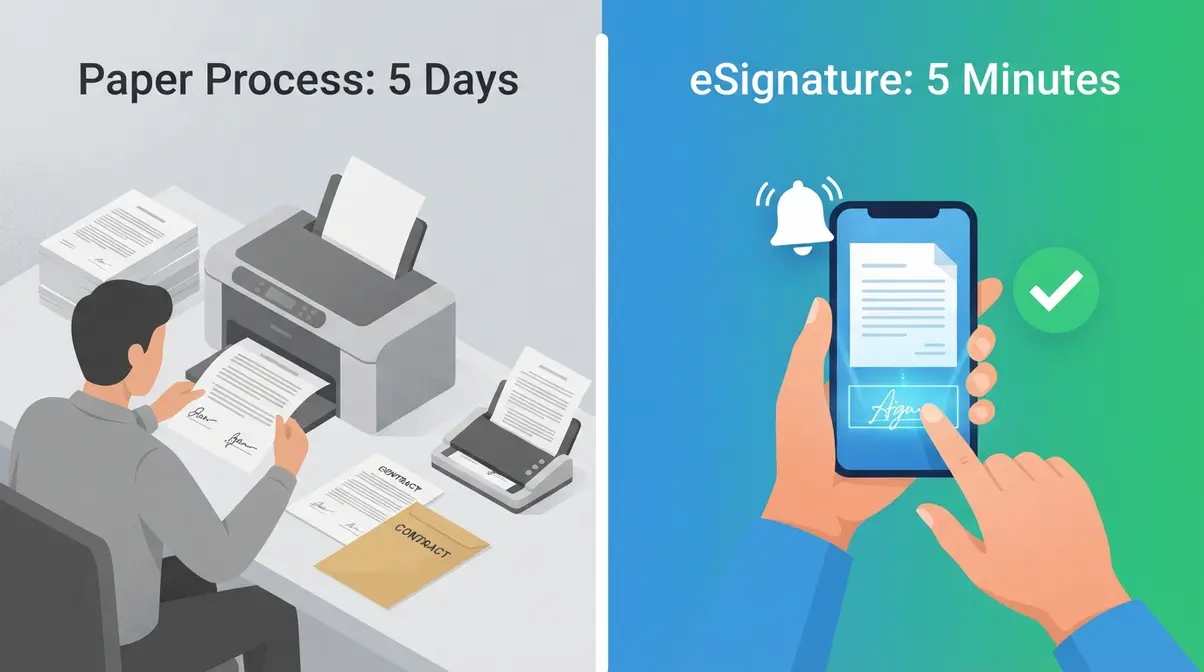
The old way was painful. You’d create a document in Word, convert it to PDF, email it to a client, wait for them to print it, sign it, scan it, and email it back. If they were on mobile, the scan was sideways. If they were busy, you waited five days. I ran this process across multiple businesses for longer than I’d like to admit — and every single time, it created unnecessary friction at exactly the wrong moment in a deal.
What changed legally was significant. The US ESIGN Act (2000) and the Uniform Electronic Transactions Act (UETA) established that electronic signatures carry the same legal weight as handwritten ones in commercial transactions. That removed the last credible objection to going fully digital. Full citations and plain-language explanations are in the legality section below.
What this means practically is that proposals that once took five days to close now take five minutes. A client receives a link, opens the document on their phone, signs with their finger, and you get an instant notification. The deal is done before either party has time to overthink it. PandaDoc was built for exactly this shift. Here’s what it actually does.
PandaDoc Signature Core Features
PandaDoc is not just an eSignature tool. It’s a three-layer platform — and understanding those three layers is the fastest way to see whether it fits your workflow. The PandaDoc Productivity Stack (Create → Sign → Integrate) replaces what most small businesses currently handle with three separate tools: a document editor, an eSign platform, and a CRM integration layer.
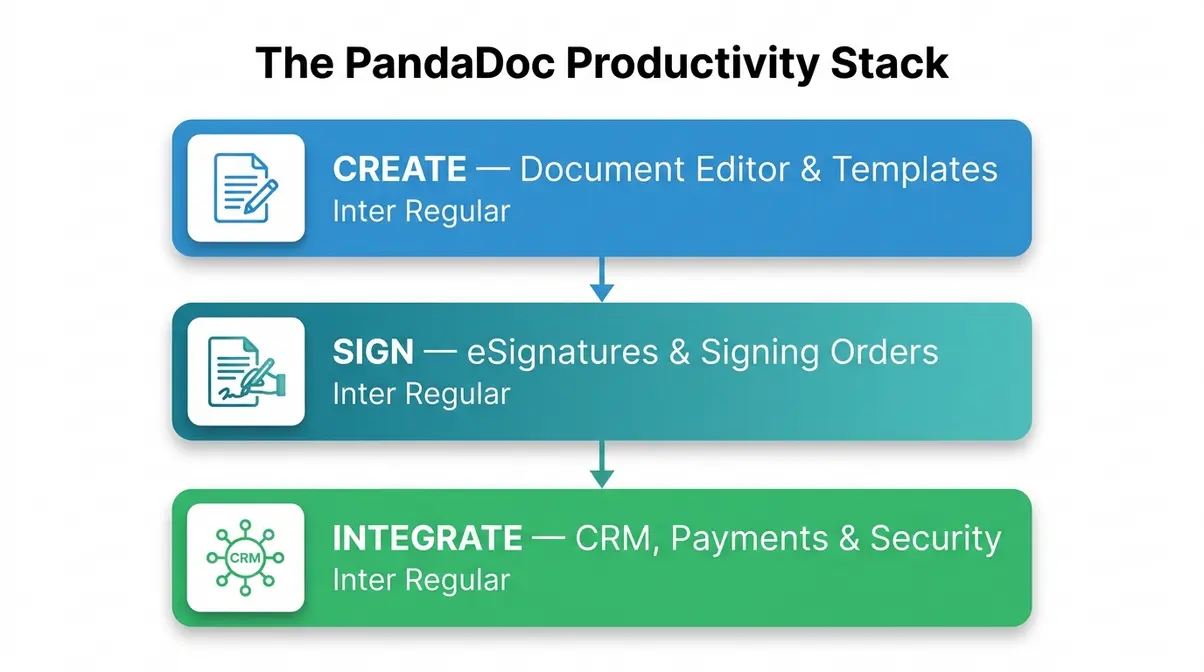
The diagram above shows how the three layers connect. A document created in Layer 1 flows directly into Layer 2 for signing, and the completed record flows into Layer 3 for CRM logging and payment collection — without you touching it again.
PandaDoc’s eSignature platform combines document creation, legally-binding signing, and CRM integration in a single platform — replacing standalone tools for proposals, contracts, and payment collection.
Layer 1: Document Editor & Templates
The document editor is where everything starts. PandaDoc’s drag-and-drop interface lets you build professional documents without any design experience. You add text blocks, images, pricing tables, and signature fields by dragging them onto the page — similar to building a document in Word, but with eSign fields built directly in.
The template library is one of the most practical time-savers on the platform. PandaDoc offers hundreds of pre-built templates organised by document type: proposals, contracts, NDAs, HR agreements, and more. For beginners, starting from a template means your signature fields are already placed correctly — you just fill in the details.
I set up a client proposal template once and now I send it in under three minutes. The variables auto-fill the client’s name, project details, and pricing — I change almost nothing. That’s the point of the variable system: you build the logic once and it handles the repetition for you. You can even set up conditional logic, where certain contract clauses appear or disappear based on the client’s answers to intake questions.
PandaDoc also includes a content library for reusable blocks — pricing tables, terms and conditions snippets, and standard clause sets you can drop into any document. For more on setting up PandaDoc templates effectively, see our dedicated template guide.
Once your document is built, Layer 2 handles the actual signing — and this is where PandaDoc’s legal compliance becomes critical.
Layer 2: eSignature & Signing Orders
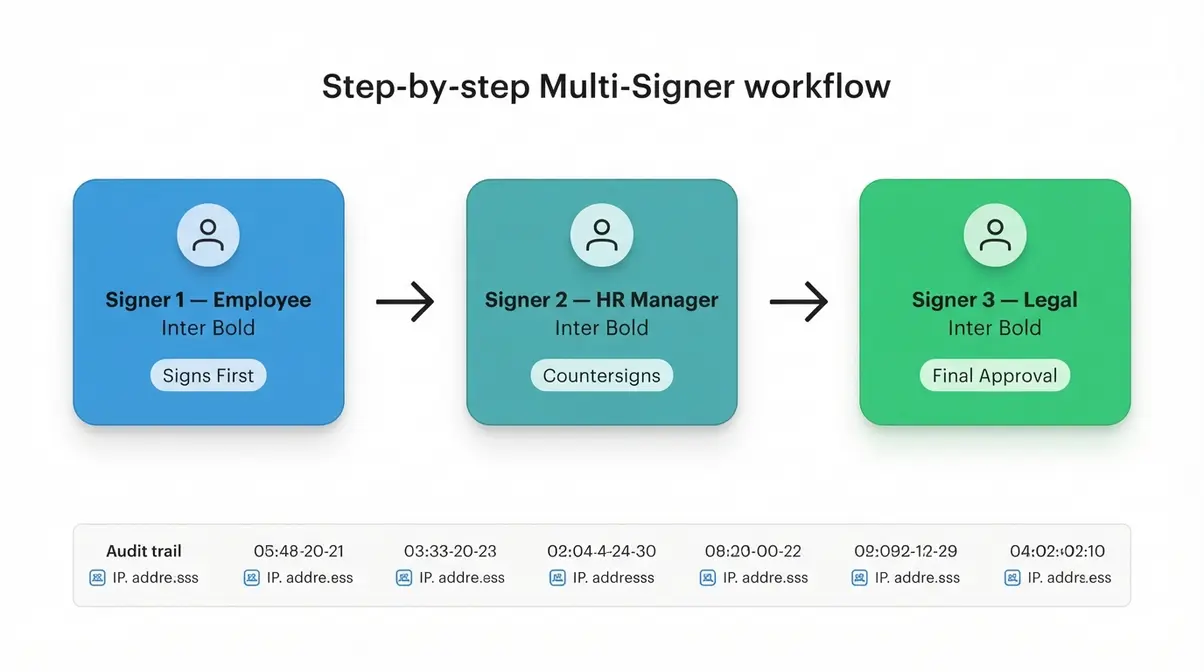
The signing experience in PandaDoc is deliberately simple for the recipient. They receive a link via email, click to open the document in their browser, and sign by drawing, typing, or uploading an image of their signature. Crucially, the recipient does not need a PandaDoc account. That removes a common friction point that kills signing rates with older clients.
Signing orders are a feature that basic eSign tools often skip. In PandaDoc, you set a specific sequence for multiple signers — for example, an employee signs first, then the HR manager countersigns, then the legal team adds their approval. The next signer only receives the document once the previous step is complete. For a three-person contract, that’s the difference between a controlled process and a free-for-all.
In-person signing is another practical capability. Hand a tablet or laptop to a client in a meeting room and they can eSign directly on the device. I’ve used this in client meeting rooms — it removes the awkward “I’ll email it over after” delay entirely. The deal closes in the room.
Every action on a document is logged in the audit trail: who opened it, when, from which IP address, and the exact moment they signed. According to CISA guidelines on digital signature security, digital signatures use PKI (Public Key Infrastructure) to provide the highest levels of security and universal acceptance. That audit trail is what makes a PandaDoc eSign legally defensible if a document is ever disputed.
For a detailed breakdown of PandaDoc document tracking capabilities, our dedicated guide covers every status notification and activity log in detail.
The third layer — Integrate — is what separates PandaDoc from basic eSign tools, and it’s the layer that matters most for sales teams and growing businesses.
Layer 3: CRM, Payments, & Security
CRM integrations are where the PandaDoc Productivity Stack earns its name. With native connections to Salesforce and HubSpot, you can send documents directly from your CRM, auto-populate all contact fields from your existing records, and have signature activity logged back to the CRM record automatically. For sales teams, this eliminates double-entry and keeps every deal’s document history in one place.
Payment processing is a feature that genuinely surprised me when I first used it. Through a Stripe integration, a client can sign a proposal and pay the deposit in the same workflow — one link, one session, deal done. There’s no separate invoice, no follow-up, no “I’ll send the payment separately.” For freelancers and service businesses, this is a meaningful workflow improvement.
On security: PandaDoc is HIPAA compliant, making it suitable for healthcare documents and patient data workflows. The HIPAA Security Rule technical safeguards require access controls and audit controls when using eSignature software for patient data (HHS) — PandaDoc meets those requirements. PandaDoc also holds SOC 2 Type II certification, which, according to SOC 2 compliance standards for data security, ensures robust internal controls for security, availability, and processing integrity of user data (AICPA). PandaDoc is built to handle sensitive documents, not just proposals.
PandaDoc was founded in 2013 with a mission to help businesses close deals faster by eliminating document chaos. Today it serves over 50,000 organisations worldwide. For PandaDoc for secure HR documents, our HR-focused guide covers employment contracts and HIPAA-adjacent document types in detail.
That’s the full PandaDoc Productivity Stack — three layers, one platform. For a deep dive into every feature and security certification, see our full PandaDoc features and security guide (coming soon).
Is PandaDoc Legally Binding?
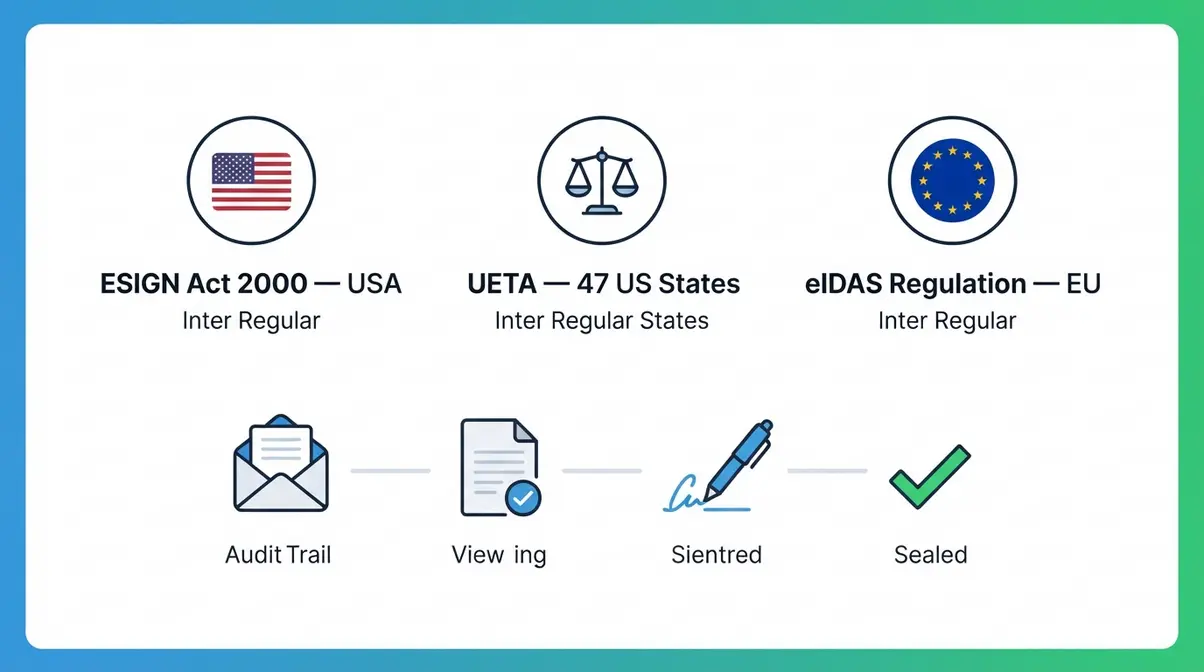
Yes — PandaDoc eSignatures are legally binding. They comply with the three major legal frameworks governing electronic signatures: the US ESIGN Act (2000), the Uniform Electronic Transactions Act (UETA), and the EU’s eIDAS Regulation. Under these frameworks, a PandaDoc eSignature carries the same legal weight as a handwritten signature in the vast majority of commercial transactions.
The ESIGN Act (Electronic Signatures in Global and National Commerce Act) was signed into US federal law in 2000. It established that electronic signatures and records are legally equivalent to paper-based ones in interstate and international commerce. UETA, adopted by 47 US states, provides the same protection at the state level. Together, they mean that a contract signed via PandaDoc is enforceable in US courts just as a wet-ink signature would be.
The eIDAS Regulation (EU Regulation No 910/2014) governs electronic signatures across EU member states. Under eIDAS Regulation on legal admissibility, an electronic signature cannot be denied legal effect or admissibility in legal proceedings solely because it is in electronic form (European Commission). PandaDoc’s standard eSignature qualifies as a Simple Electronic Signature (SES) under eIDAS — valid for the vast majority of commercial contracts.
PandaDoc’s compliance rests on three pillars: the audit trail (timestamped record of every action), signer identity verification (email-based confirmation plus IP logging), and tamper-evident document sealing (any post-signing change invalidates the document). These are the specific mechanisms that make the signature legally defensible, not just technically possible.
Note: This article is for informational purposes only and does not constitute legal advice. For document-specific legal requirements in your jurisdiction, consult a qualified solicitor or legal professional.
Now that the legality question is settled — let’s get practical. Here’s exactly how to use PandaDoc from day one.
How to Use PandaDoc: A Beginner’s Walkthrough
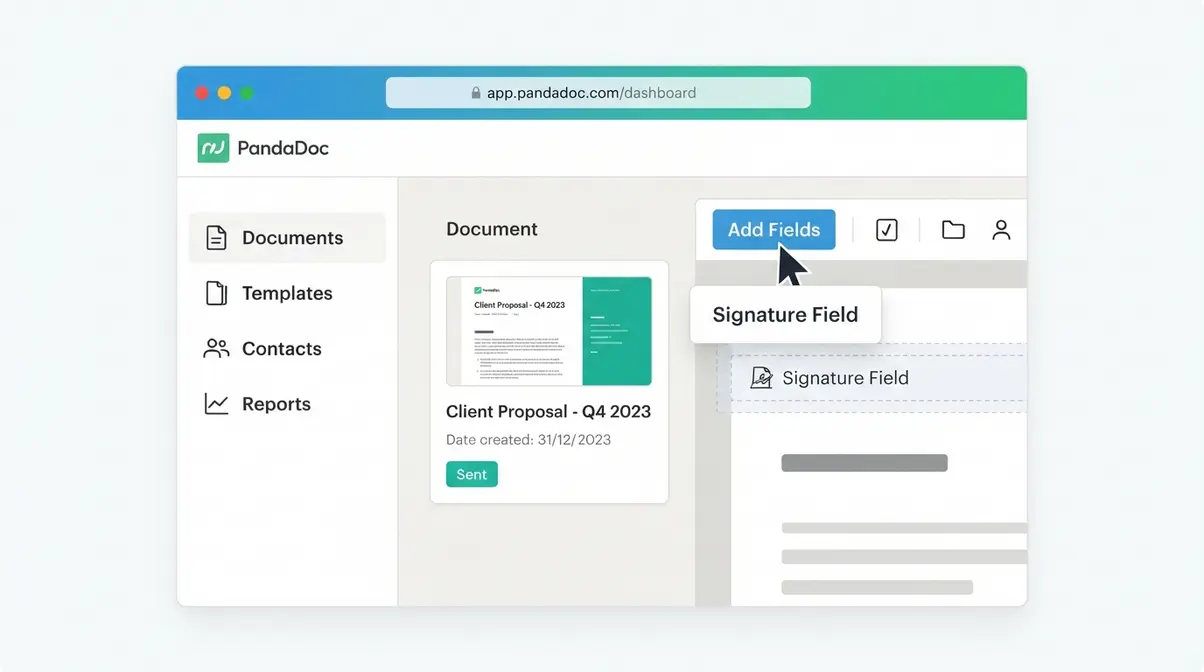
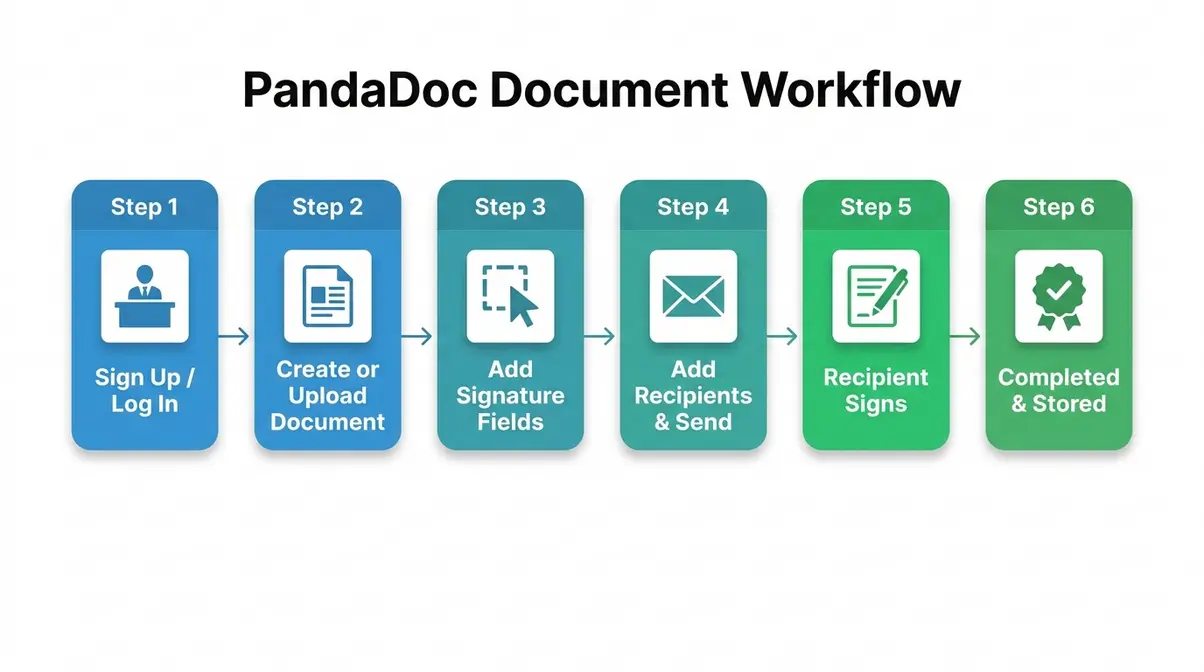
Most users send their first document for eSignature within 15 minutes of signing up — the interface is designed to get you there quickly. Here’s the quickest path to your first signed document, broken into three steps.
> **Watch it in action:** For a visual walkthrough of the full process, watch the video below — it covers the entire workflow from account setup to sending your first document for signature.
>
>
To send a document for eSignature in PandaDoc: upload or create your document, drag signature fields to the correct positions, add the recipient’s email address, and click Send — the entire process takes under five minutes for a standard contract.
Step 1: Create or Upload Your Document
Log in to PandaDoc and you land on the dashboard — the main screen showing your recent documents, templates, contacts, and reports. The left-hand navigation has four primary sections: Documents, Templates, Contacts, and Reports. Spend thirty seconds here before you do anything else — it’s a clean interface and nothing is hidden.
You have two paths for creating a document. The first is to start from a template: browse the template library by category (proposals, contracts, NDAs, HR documents) and select one that fits your use case. For beginners, this is the recommended path — signature fields are pre-placed and the structure is already logical. The second path is to upload an existing PDF: drag your file into PandaDoc and it converts it into an editable document. The trade-off is that you’ll need to place signature fields manually, which takes a few extra minutes.
Once you’re in the editor, the drag-and-drop interface lets you add text blocks, pricing tables, images, and signature fields anywhere on the page. You can also pull in reusable content from your content library — pre-saved pricing tables, standard terms, or clause sets. For a detailed guide to setting up PandaDoc templates effectively, including variable setup and conditional logic, see our dedicated template walkthrough.
Step 2: Add Fields & Send for eSign
With your document built, click Add Fields in the top toolbar. Drag a Signature field to the position where your recipient needs to sign. You can also add Date fields, Initials fields, and text input fields for anything the signer needs to fill in (name, company, address).
Assign each field to a specific recipient — PandaDoc colour-codes each signer so you can see at a glance which fields belong to whom. If you have multiple signers, set the signing order under Recipients: decide who signs first, second, and third. The next recipient only receives their notification once the previous step is complete.
When you’re ready, click Send. Enter the recipient’s email address, add a personalised message if you like, and hit Send Document. The recipient receives an email with a secure link — they open it in any browser, no account required, and sign. You receive an instant notification the moment they do. For more on practical guide to sending proposals with PandaDoc, including real client examples, see our proposals walkthrough.
Step 3: Track Your Document’s Status
Back in the PandaDoc dashboard, your document now shows a live status: Draft, Sent, Viewed, Completed, or Declined. Click into the document to see the full activity log — when it was opened, how long the recipient spent on each page, and the exact moment they signed.
This tracking data is genuinely useful. If a proposal has been “Viewed” for three days without a signature, that’s your cue to follow up — and you know they’ve read it. If it shows “Not Opened,” your follow-up conversation is different. The status visibility alone removes a lot of the guesswork from chasing deals.
For the complete step-by-step PandaDoc how-to guide — including advanced template setup, payment collection, and CRM workflow configuration — our full PandaDoc how-to guide is available (coming soon).
PandaDoc Pricing: Free vs. Paid Plans
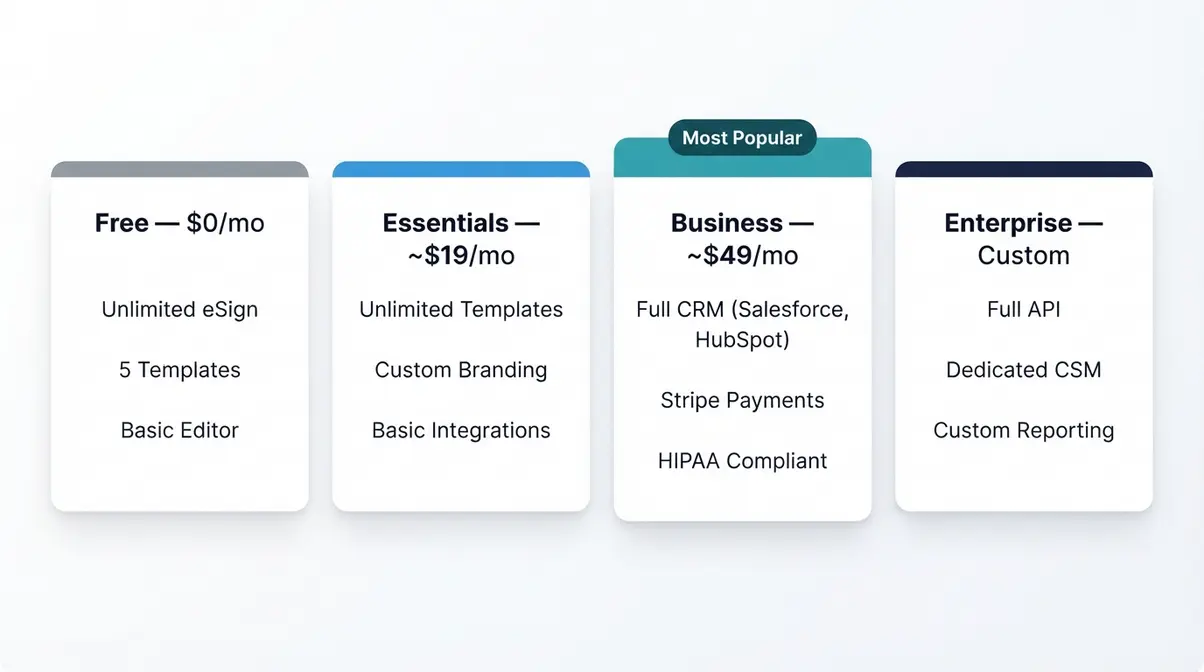
See PandaDoc’s official pricing page for the most current figures.
PandaDoc offers four tiers. The free plan is genuinely useful for low-volume users — but it has specific limits worth understanding before you commit to a workflow that depends on features only available in paid tiers.
| Feature | Free | Essentials | Business | Enterprise |
|---|---|---|---|---|
| Price (per user/month) | $0 | ~$19 | ~$49 | Custom |
| Documents | Unlimited uploads | Unlimited | Unlimited | Unlimited |
| eSignatures | Unlimited | Unlimited | Unlimited | Unlimited |
| Templates | Limited (5) | Unlimited | Unlimited | Unlimited |
| Document editor | Basic | Full | Full | Full |
| Custom branding | ❌ | ✅ | ✅ | ✅ |
| CRM integrations | ❌ | Limited | Full (Salesforce, HubSpot) | Full + API |
| Payment collection | ❌ | ❌ | ✅ (Stripe) | ✅ |
| Reporting & analytics | ❌ | Basic | Advanced | Custom |
| HIPAA compliance | ❌ | ❌ | ✅ | ✅ |
| API access | ❌ | ❌ | Limited | Full |
| Support | Email only | Email + chat | Priority | Dedicated CSM |
The free plan suits freelancers and solo operators sending a small volume of straightforward documents. Unlimited eSignatures with no credit card required is a genuine offering — not a watered-down trial. The hard limits are: five templates maximum, no custom branding (documents show PandaDoc’s branding), no CRM integrations, and no payment collection.
The Essentials plan (approximately $19/user/month, billed annually) unlocks unlimited templates, custom branding, and basic integrations. For most small businesses sending under 500 documents per year, this is the practical entry point for a professional workflow.
The Business plan (approximately $49/user/month, billed annually) adds full CRM integrations (Salesforce, HubSpot), payment collection via Stripe, advanced analytics, and HIPAA compliance. This is the tier where the full PandaDoc Productivity Stack operates.
For a full breakdown of every plan’s hidden limits and feature gates, read our detailed PandaDoc business plan review.
PandaDoc vs. DocuSign and Adobe Sign
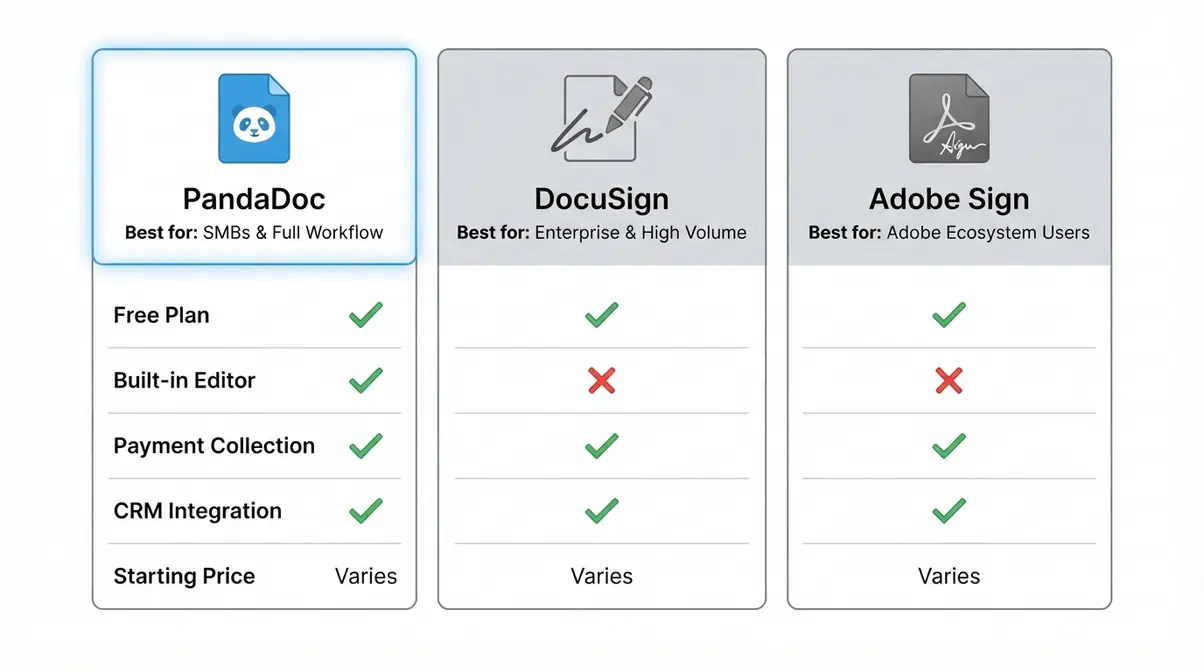
PandaDoc, DocuSign, and Adobe Sign are the three names that appear in almost every eSignature comparison. They’re not interchangeable — each suits a different user type.
| PandaDoc | DocuSign | Adobe Sign | |
|---|---|---|---|
| Free plan | ✅ Unlimited eSign | ✅ 30-day trial only | ❌ No free plan |
| Document editor | ✅ Built-in (full) | ❌ Limited | ❌ Limited |
| Template library | ✅ Hundreds | ✅ Basic | ✅ Basic |
| CRM integrations | ✅ Salesforce, HubSpot | ✅ Salesforce | ✅ Salesforce |
| Payment collection | ✅ Stripe (Business+) | ❌ | ❌ |
| Starting price | $0 (free) / ~$19/mo | ~$15/mo (Sign only) | ~$14.99/mo |
| Best for | SMBs, proposals, full workflow | Enterprise, high-volume legal | Adobe ecosystem users |
DocuSign is the market leader by volume and name recognition. It excels at high-volume, legally complex document workflows — enterprise contracts, real estate transactions, regulated industries. Its document editor is limited compared to PandaDoc’s, and there’s no free plan beyond a short trial. User consensus across G2 and Capterra indicates DocuSign’s pricing becomes expensive quickly for small teams needing more than basic eSign.
Adobe Sign (part of Adobe Acrobat) makes sense if your team is already embedded in the Adobe ecosystem — Acrobat, Creative Cloud, or Adobe Document Cloud. Its eSign capability is solid, but it lacks PandaDoc’s built-in document editor and payment collection. For users who primarily need to eSign existing PDFs rather than build documents from scratch, it’s a reasonable choice.
PandaDoc wins for small businesses and freelancers who need the full document lifecycle — creation, signing, and CRM integration — without stitching together three separate tools. That’s the PandaDoc Productivity Stack advantage: one platform replaces the patchwork.
For a detailed side-by-side comparison, check out our PandaDoc vs. DocuSign guide, or read our comprehensive PandaDoc review for more use-case breakdowns.
Limitations and When to Consider Alternatives
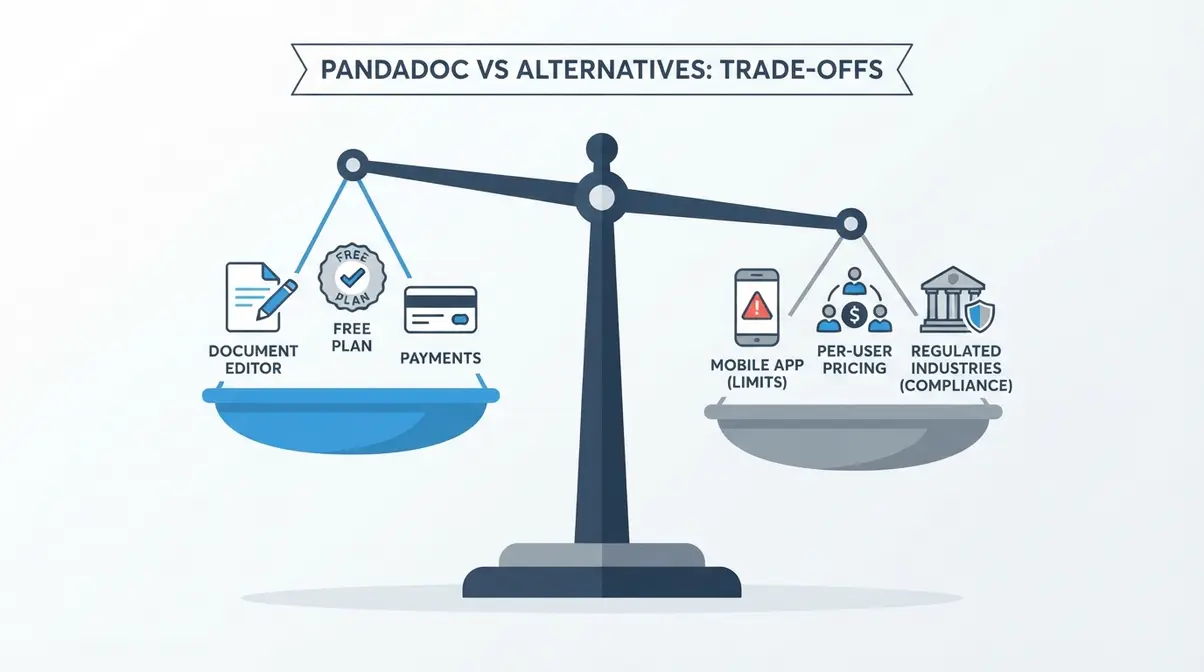
Every tool has limits. Here’s an honest look at where PandaDoc falls short — and what to use instead in those cases.
Common Pitfalls
The free plan template cap catches people off guard. The five-template limit on the free plan sounds generous until you’re running three different service lines and need separate proposal formats for each. If you hit the cap, you’re either recreating documents manually or upgrading. Know this before you build your entire workflow around the free tier.
The mobile app experience is functional, not polished. PandaDoc’s mobile app covers the basics — viewing document status, approving, signing — but building or editing documents on mobile is awkward. If your workflow requires heavy document creation on a phone, this is a genuine friction point.
Pricing scales with users, not documents. If you’re a solo operator, the per-user pricing model works in your favour. If you’re adding team members, costs compound quickly. A three-person team on the Business plan is approximately $147/month — worth it for the workflow gains, but worth modelling before committing.
When to Choose Alternatives
Choose DocuSign if your business operates in a heavily regulated industry (real estate, financial services, legal) that requires advanced identity verification, certified delivery, or specific compliance certifications beyond SOC 2 and HIPAA. DocuSign’s enterprise-grade audit infrastructure is deeper for these use cases.
Choose Adobe Sign if your team lives in Adobe Acrobat and primarily needs to eSign existing PDFs rather than build new documents. The Adobe ecosystem integration is seamless — but you’ll lose PandaDoc’s document creation and payment collection capabilities.
When to Seek Expert Help
If you’re handling patient health data (PHI), financial records, or legal documents with cross-jurisdictional requirements, verify PandaDoc’s current compliance certifications against your industry’s specific regulations before deploying. PandaDoc’s live chat support and help centre (available at support.pandadoc.com) can answer platform-specific compliance questions directly. For legal requirements specific to your jurisdiction or document type, consult a qualified solicitor or legal professional.
Disclaimer: This article is for informational purposes only and does not constitute legal advice. For document-specific legal requirements in your jurisdiction, consult a qualified solicitor or legal professional.
Frequently Asked Questions
Is PandaDoc free to use?
Yes — PandaDoc offers a genuinely free plan with unlimited document uploads and unlimited eSignatures, no credit card required. The free plan includes a basic document editor and up to five saved templates. It does not include custom branding, CRM integrations, payment collection, or priority support. For freelancers and solo operators sending under 500 documents per year on straightforward contracts, the free plan covers the core use case well.
Is PandaDoc legally binding in the UK?
PandaDoc eSignatures are legally recognised in the UK under the Electronic Communications Act 2000 and are consistent with eIDAS standards, which the UK retained post-Brexit in domestic legislation. PandaDoc’s audit trail, IP logging, and tamper-evident document sealing provide the evidence layer required for enforceability. This robust framework ensures that your agreements hold up under scrutiny. Always ensure your specific use case aligns with local regulations, especially for deeds, wills, or regulated financial agreements.
How does PandaDoc compare to DocuSign?
PandaDoc and DocuSign solve different problems. DocuSign leads on high-volume enterprise workflows and regulated-industry compliance depth. Meanwhile, PandaDoc leads on document creation, built-in templates, payment collection, and overall value for small businesses.
Can I use PandaDoc for HR contracts?
Yes — PandaDoc is well-suited for HR documents including employment contracts, NDAs, offer letters, and onboarding packets. The template library includes pre-built HR document formats, and signing orders allow an employee to sign first before a manager countersigns. PandaDoc’s SOC 2 Type II certification and HIPAA compliance (on Business and Enterprise plans) make it appropriate for documents containing sensitive employee data. For a detailed walkthrough, see our guide to PandaDoc for secure HR documents.
Do signers need a PandaDoc account?
Recipients do not need a PandaDoc account to sign. They receive a secure link via email, open the document in any browser, and sign by drawing, typing, or uploading a signature image.
Why the PandaDoc Productivity Stack Works
For freelancers and small business owners sending under 500 documents per year, PandaDoc signature software delivers a complete document lifecycle — creation, legally-binding eSignature, and CRM integration — in a single platform, starting free. The audit trail and compliance with the ESIGN Act, UETA, and eIDAS Regulation make every signature legally defensible. The PandaDoc Productivity Stack (Create → Sign → Integrate) is the clearest way to understand why PandaDoc is more than a signing tool — it replaces the patchwork of separate tools most small businesses are currently using.
The framework matters because it changes how you evaluate the platform. You’re not comparing a signing feature to DocuSign’s signing feature. You’re comparing an entire document workflow — one that starts with creation, moves through signing, and ends with CRM logging and payment collection — against three separate tools you’re currently paying for (or managing manually).
Start with the free plan. Send your first document for eSignature today and see whether the workflow fits. If you’re sending more than a handful of documents per month, the Essentials plan at approximately $19/user/month is a straightforward upgrade. If you need CRM integrations and payment collection, the Business plan is where the full PandaDoc Productivity Stack comes to life. Give it 30 days — the time saving from your first signed proposal will tell you everything you need to know.
Ready to replace the email-print-sign-scan loop for good?
Try PandaDoc free — unlimited eSignatures, no credit card required. The free plan is a genuine starting point, not a limited trial.
[Start Your Free PandaDoc Trial →]