 By Dave King
Affiliate disclosure. Some links on this page are affiliate links. If you buy through them I may earn a small commission, at no extra cost to you. It never changes what I recommend.
GoHighLevel is one of those platforms that rewards organisation from day one. If you want to know how to organise your GoHighLevel CRM properly, the short answer is: structure it before you need it, not after it breaks. I have made the messy version of this mistake, and it is not fun to unpick.
The problem is usually the same. Contacts pile up with no tags, pipelines fill with stale opportunities, and workflows fire on triggers that no longer match anything in the database. Signing up for a free trial at GoHighLevel is the easy part; getting your CRM into a shape you can trust takes more thought.
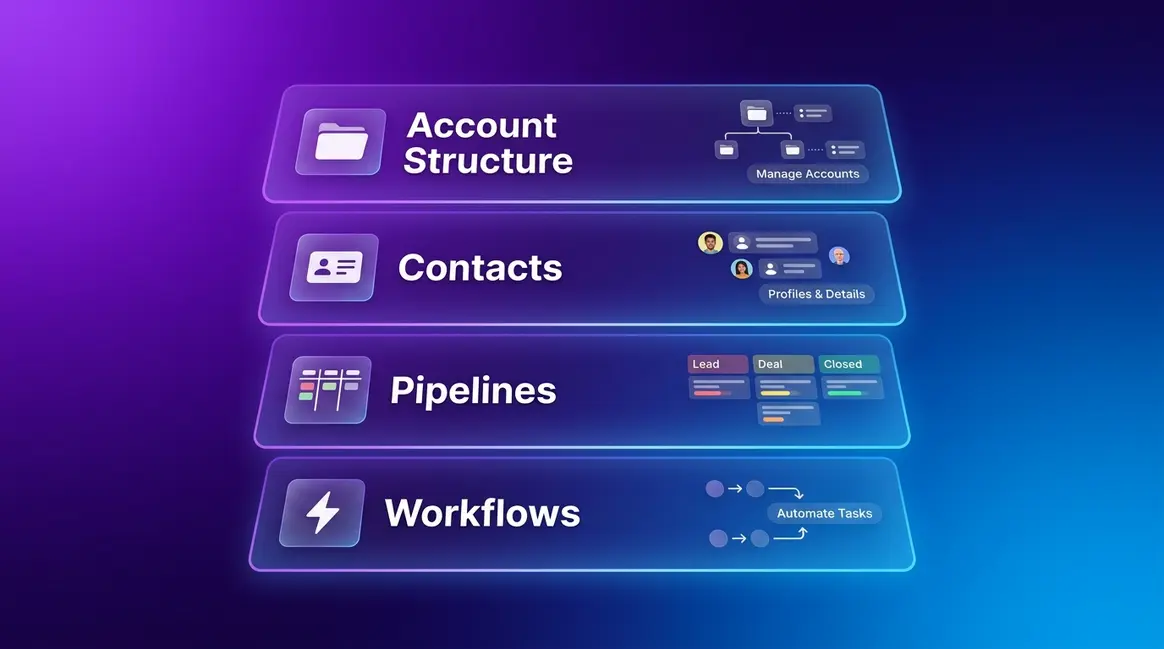
This guide covers what I set up in every account, in order: account structure, contact data, pipelines, and workflows. Work through them in that order and you will end up with a CRM that is noticeably easier to maintain.
This is for GoHighLevel users who have an active account and want a clear system for keeping their CRM clean and usable. It assumes you can log in and navigate the main menu. No prior automation experience needed.
If the interface has changed since this date, use the product’s own menus or help documentation to find the equivalent option.
A well-organised GoHighLevel CRM comes down to a consistent account structure, clean contact data with tags and custom fields, lean purpose-built pipelines, and clearly named workflows. Set each one up in that order and your CRM becomes a reliable system rather than a place contacts go to disappear.
- Account structure first: name everything consistently before adding contacts.
- Tags for behaviour, custom fields for facts: the single rule that prevents database bloat.
- One pipeline per process: separate sales from onboarding from retention.
- Named and numbered workflows: so you can find and fix them quickly.
Set it up yourself
Work through the four layers in this guide in order. It takes a focused session to get the foundations right, and everything you build afterwards will be quicker to manage.
Use a GoHighLevel snapshot
Snapshots let you import a pre-built structure into a new sub-account. Useful for agencies spinning up client accounts quickly, though you will still need to adjust naming conventions to fit your business.
What’s in this guide
How I Organise My GoHighLevel CRM
The system I use breaks the CRM into four layers, each one depending on the one before it. Account structure first, then contact data, then pipelines, then workflows. Skipping ahead to pipelines before your contact data is clean is the fastest way to end up with the same mess all over again.
When I first set this up for Carden Digital, I had a single pipeline with dozens of opportunities in it and no consistent tag system. Moving to a layered structure made the whole account noticeably easier to hand off to the team. If you are still weighing up whether GoHighLevel is the right platform for your business, my GoHighLevel review covers the full picture before you commit to a setup.
How I Work Through the Setup, Step by Step
Set your naming conventions
Before you create anything, decide on your naming rules. Use a consistent format for sub-accounts, tags, custom fields, and workflows. A simple pattern like Niche-ClientName for sub-accounts and lowercase-hyphenated names for tags keeps everything scannable at a glance.
Organise your contacts with smart lists
Go to Contacts – Smart Lists – Create New and build filtered views for each segment you need. Use filters based on tags, lead status, or custom field values. Smart lists are saved filters, not separate contact records, so a contact can appear in multiple lists without being duplicated.
Define your tags and custom fields
Open Settings – Custom Fields and create only the fields you will actively filter or report on. Set up your tag list separately using a consistent naming format. Workflows will apply tags automatically once you connect them in step five, so you do not need to add them manually at this stage.
Build one pipeline per process
Navigate to Opportunities – Pipelines and create a separate pipeline for each distinct process, such as Sales, Client Onboarding, and Retention. Each pipeline should have a Closed Won and Closed Lost stage at the end so no opportunity disappears without a recorded outcome.
Name and folder your workflows
Head to Automation – Workflows and create folders matching your pipeline stages or business processes. Name each workflow with a number prefix so they sort in logical order: 01-New Lead Nurture, 02-Appointment Booked, 03-Post-Sale Onboarding. This makes troubleshooting quicker when a trigger stops firing correctly.
How I Choose Between Tags and Custom Fields
The rule I use is simple: tags describe behaviour, custom fields store facts. A tag might be “downloaded-lead-magnet” or “attended-webinar”. A custom field holds a company name, a postcode, or a contract value.
Getting this wrong leads to one of two problems. Either you end up with hundreds of tags that overlap and contradict each other, or you have custom fields that nobody fills in because nobody knows what they are for. The GoHighLevel help documentation on managing tags explains how tags can segment your database and trigger workflows without cluttering your fields.
For NextTier MSP, I keep tags to a maximum of three active tags per contact at any one time. If a new tag is needed, I review whether an existing one can be retired first. That single habit keeps the database clean without requiring a major audit every few months.
How I Build My Pipelines
A pipeline is a visual map of one process. The moment you put two processes into one pipeline, you lose the ability to forecast either of them accurately. I keep at least three separate pipelines in most accounts: one for sales, one for onboarding, and one for any ongoing client work.
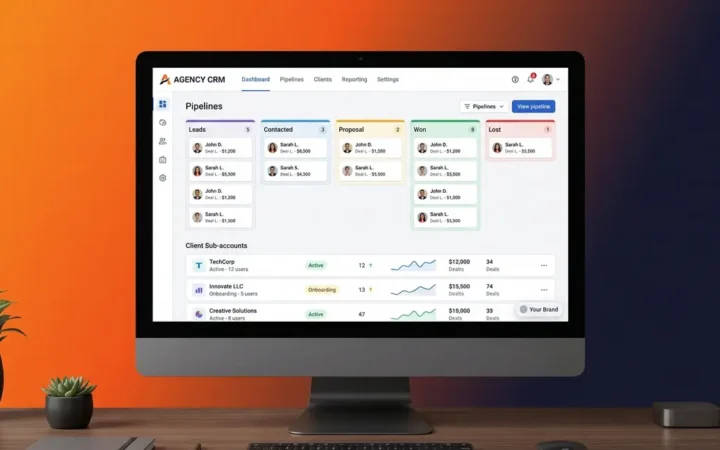
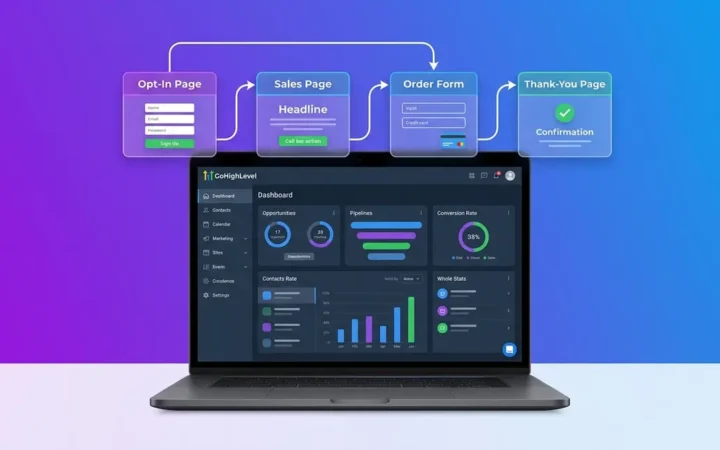
Each stage should represent a real decision point, not a task. “Proposal Sent” is a stage; “Draft proposal” is a task that belongs inside a workflow. The GoHighLevel guide on creating and managing pipelines covers the technical steps, and my guide on how to create GoHighLevel funnels shows how to bring leads into those pipelines from the top of the funnel.
How I Name and Organise My Workflows
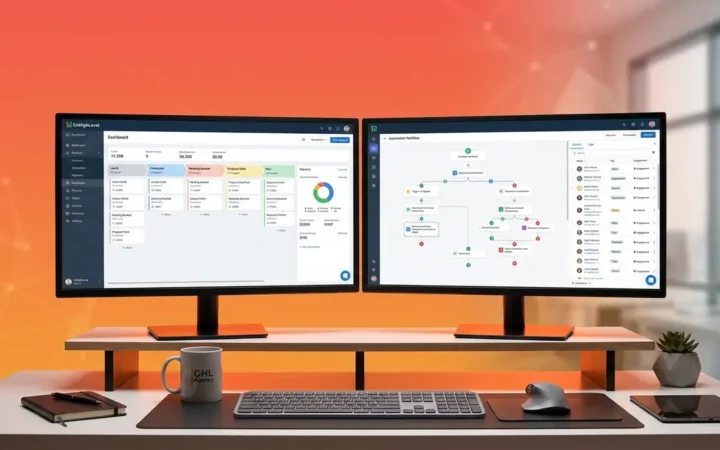
Messy workflows are usually the result of building them in the order you thought of them rather than the order they fire. I use a numbered folder structure so that anyone who opens the Automation section can see at a glance what fires when. Reviewing the automation list for Carden IT Services, the biggest gain came from deleting workflows that had stopped firing correctly, not from adding new ones.
For agencies running client sub-accounts, the Agency Pro plan gives you access to snapshots, which let you deploy a pre-organised workflow structure into a new account without rebuilding from scratch. Start an Agency Pro trial if that fits your setup. The in-depth guide on how to build a GoHighLevel workflow covers trigger and action logic in full if you want to go further than folder structure.
Your contacts view has at least one smart list. Your pipelines tab shows a separate pipeline for each process. Your workflows are in named folders with a number prefix. Every new contact will have at least one tag applied automatically.
- Naming convention document written and shared with the team
- Sub-account names follow the agreed format
- All custom fields reviewed and duplicates removed
- Every tag follows lowercase-hyphenated naming
- At least one smart list created per contact segment
- One pipeline per business process, each with a Closed Won and Closed Lost stage
- Workflows in folders with number prefixes
- At least one test contact run through each active workflow
QWhat is the difference between a tag and a custom field in GoHighLevel?
Tags record what a contact has done or where they came from. They are applied and removed dynamically and used to trigger workflows. Custom fields store fixed facts about a contact, such as company name or postcode. Use tags for behaviour and actions; use custom fields for data you need to filter or report on.
QHow many pipelines should I have in GoHighLevel?
One pipeline per distinct business process is the right starting point. A typical setup includes a sales pipeline, a client onboarding pipeline, and a retention pipeline. Combining two processes into one pipeline makes it impossible to forecast either accurately. Start with the fewest pipelines that cover your real workflows and add more only when a new process genuinely needs its own stages.
QHow do I use smart lists to find contacts quickly?
Smart lists are saved filters that update automatically as contacts meet or stop meeting the criteria. Go to Contacts – Smart Lists – Create New and apply filters for the tags, custom field values, or lead status you want to see. Build one smart list per segment you regularly need to access or message.
QCan workflows apply tags automatically in GoHighLevel?
Yes, workflows can apply tags automatically. Inside any workflow, add an Add Tag action and choose the tag you want applied. The workflow fires the action whenever the trigger condition is met, such as a form submission or a pipeline stage change. Automating tag application keeps your contact data consistent without relying on manual entry.
QWhat naming convention works best for GoHighLevel tags?
Lowercase with hyphens is the most reliable format: “attended-webinar” or “requested-callback”. Avoid spaces, capital letters, and special characters, as these can cause mismatches when workflows check for an exact tag name. Agree the convention with your team before you start and document it somewhere everyone can find it.
QHow do I stop my GoHighLevel CRM getting messy over time?
Run a quarterly audit. Check for duplicate tags, unused custom fields, and workflows that are no longer active. Archive or delete anything not in use. Set a rule that no new tag or custom field is created without updating the naming convention document. Consistent habits prevent the database drift that makes CRMs hard to use.
Want this set up properly?
If you would rather someone else set the whole thing up while you focus on running the business, get in touch.