 By Dave King
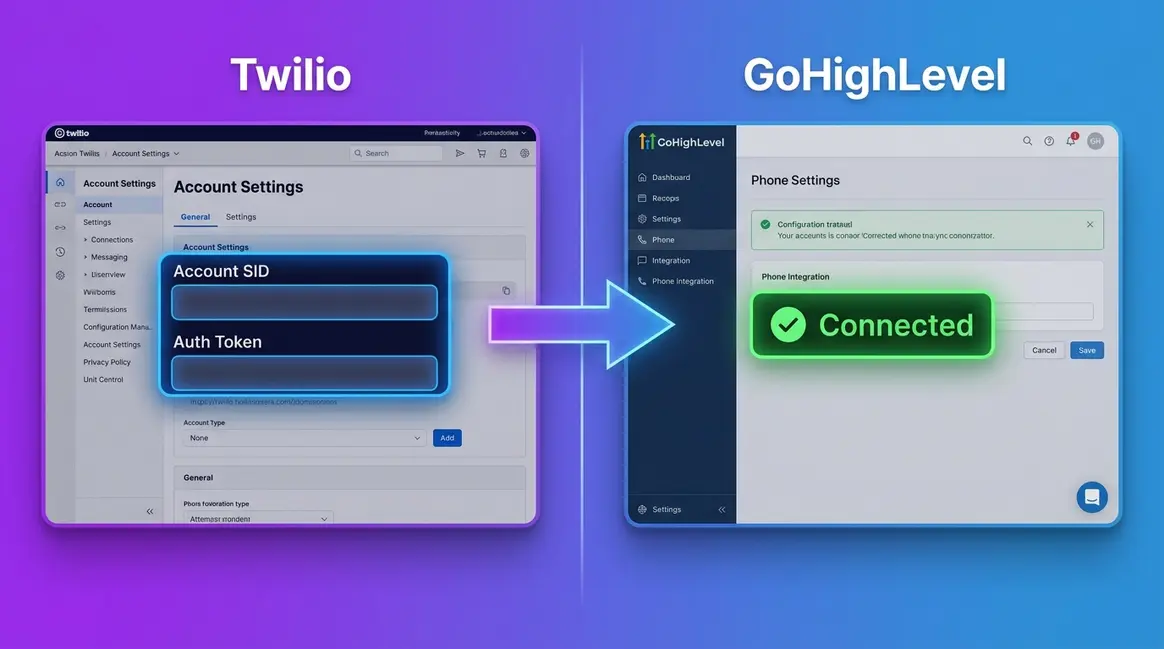
You have GoHighLevel open. You have (or are about to create) a Twilio account. And you are staring at a settings screen asking for an “Account SID” and an “Auth Token” with no clear explanation of where to find them, what order to do things in, or what happens if you get it wrong. I have been there. When I first worked out how to set up Twilio with GoHighLevel across a handful of client accounts, I made every avoidable mistake in the book.
Most guides hand you four steps and call it done. What they skip is the compliance setup, specifically A2P 10DLC registration, which is the reason most new Twilio integrations quietly fail within the first week. Your SMS shows as “sent” in GoHighLevel, but it never arrives. That is a frustrating way to discover a missing step.
In this guide, I will walk you through how to set up Twilio with GoHighLevel from scratch, including the A2P 10DLC compliance step that most tutorials skip. By the end, you will have a connected, compliant Twilio integration that is ready to send SMS and make calls inside GoHighLevel from day one.
Who this is for: GoHighLevel users — agency owners, consultants, and business operators — who want to use their own Twilio account for SMS, MMS, and calls instead of GoHighLevel’s default LeadConnector phone system.
What it assumes: You have (or will create) a GoHighLevel account and a Twilio account. No coding knowledge required.
What you will achieve: A fully connected, A2P 10DLC compliant Twilio integration inside GoHighLevel, built in the correct order so your messages actually reach people.
[/whofor]
Screenshots in this guide reflect the GoHighLevel and Twilio interfaces as of July 2026. Both platforms update their UIs periodically, so exact button labels or screen layouts may shift slightly. The steps themselves remain consistent.
There are two ways to connect Twilio to GoHighLevel:
- Direct Twilio Integration (recommended — this guide): Connect your own Twilio account using your Account SID and Auth Token. This gives you full control over your phone numbers, your billing, and your A2P compliance registration. If you ever leave GoHighLevel, your numbers and compliance registrations go with you.
- LeadConnector (GoHighLevel’s built-in option): Use GoHighLevel’s own phone system, which runs on Twilio behind the scenes but is managed entirely by GHL. It is simpler to set up and requires no Twilio account, but you have less control over costs and number portability. This option is covered in the LeadConnector vs Direct Twilio section later in this guide.
Option 1 is the recommended path for anyone running an agency or wanting transparent, portable billing.
[/installmethods]
What’s in this guide
Before You Begin: What You Need
Before you can connect Twilio to GoHighLevel, you need two things: a Twilio account with your credentials to hand, and GoHighLevel Agency-level admin access. If you do not have a Twilio account yet, you can create one in under five minutes. Here is exactly what to gather before you touch a single setting in GoHighLevel.
Estimated time: 10-15 minutes
- Tools and Materials Needed:
- Twilio account credentials (Account SID and Auth Token)
- GoHighLevel Agency-level admin access
- A valid payment method for Twilio billing
Businesses that skip the prerequisites stage and jump straight to the integration screen tend to get stuck halfway through. Getting your Account SID and Auth Token copied before you open GoHighLevel means you can complete the entire connection in one sitting.
How to Create a Twilio Account
Go to the Twilio website and click “Sign up for free.” You will need an email address and a phone number for verification. The process takes about three minutes.
Once verified, you land on the Twilio project dashboard. This is where your two critical credentials live. Account SID (your unique account identifier, like a username for the API) is displayed prominently. Auth Token (the secret key that authenticates your API calls, like a password) sits directly below it, hidden by default. Click “show” to reveal it before copying. This matters: if you copy the Auth Token while it is still masked, you will paste a string of dots into GoHighLevel and the connection will fail immediately.
Is Twilio good for beginners?
Yes — the basic credential copy-paste requires no coding at all. You are simply copying two strings of text from one dashboard and pasting them into another.
Twilio offers a free trial with a small starting credit, which is enough to test the integration. One thing to know: the free trial adds a “Sent from a Twilio trial account” prefix to every outgoing SMS. That is fine for testing, but you will want to upgrade to a paid account before using this for any client work.
As the Twilio Help Centre confirms, your Account SID and Auth Token are the primary credentials for all API access — treat the Auth Token like a password and never share it publicly.
[imgph: Twilio console dashboard — highlight the Account SID field and the Auth Token field with a “reveal” button visible. Caption: “Your Account SID and Auth Token are on the main Twilio dashboard — you will need both.”]Once you have those two credentials copied somewhere safe, you are ready to paste them into GoHighLevel.
What You Need in GoHighLevel
You need Agency-level admin access in GoHighLevel, not just a sub-account login. The navigation path is: Settings > Phone Integration. If you cannot see Phone Integration in your Settings menu, you are likely in a sub-account view rather than the Agency view. Switch to the Agency dashboard using the account switcher at the top of the screen.
If you do not yet have a GoHighLevel account, you can start a 14-day free trial here before following the steps below.
For agency owners setting up Twilio for a client: you connect Twilio at the Agency level, and the phone numbers you purchase then become available to assign to individual sub-accounts (client workspaces within GHL). Think of the Agency level as the master account — everything you connect there flows down to your clients.
GoHighLevel’s official Twilio setup guide covers the Agency Settings navigation in detail if you want the official reference alongside this walkthrough.
[imgph: GoHighLevel Agency Settings screen — highlight the “Phone Integration” option in the left sidebar navigation. Caption: “You need to be in Agency Settings, not a sub-account, to see the Phone Integration option.”]Right, credentials in hand and GoHighLevel open on the right screen. Let us get them connected.
How to Set Up Twilio with GoHighLevel
Connecting Twilio to GoHighLevel takes about 10 minutes if you have your credentials ready. I call this the Compliance-First Setup Sequence — credentials first, number second, compliance third. Doing it in this order is the difference between SMS that lands and SMS that gets blocked.
The full sequence is six steps: paste credentials, save, buy a number, assign it, test it, then register for A2P compliance (covered in the next section). Here is each step in detail.
“Connecting Twilio to GoHighLevel requires three inputs: your Account SID, your Auth Token, and a verified phone number purchased inside GoHighLevel’s Phone Integration settings.”
Step 1: Open Phone Integration in GoHighLevel
In GoHighLevel, go to Settings (bottom-left of the Agency dashboard) and select Phone Integration from the left sidebar.
You will see two options: LeadConnector and Twilio. Select Twilio. This tells GoHighLevel to route all outbound SMS, MMS, and calls through your own Twilio account rather than the shared LeadConnector pool. It also means your billing goes directly to Twilio, not through GoHighLevel’s credit system.
[imgph: GoHighLevel Phone Integration settings screen showing the choice between LeadConnector and Twilio, with Twilio highlighted/selected. Caption: “Select Twilio in the Phone Integration settings to connect your own account — this is the Twilio GoHighLevel setup starting point.”]
[/stepblock]
Step 2: Enter Your Account SID and Auth Token
Paste your Account SID into the Account SID field and your Auth Token into the Auth Token field. Both values come from your Twilio project dashboard, as covered in the prerequisites section above.
A very common mistake: copying the Auth Token before clicking “show” in Twilio, which copies a masked string of dots rather than the actual token. I have done this more than once, and it is genuinely the most common reason the connection fails first time. Make sure the token is fully visible in Twilio before you copy it.
[imgph: GoHighLevel Phone Integration screen with Account SID and Auth Token fields filled in (use blurred/placeholder values). Caption: “Paste your Account SID and Auth Token exactly as they appear in your Twilio dashboard.”]
[/stepblock]
Step 3: Save and Verify the Connection
Click Save. GoHighLevel will attempt to verify the credentials with Twilio in real time.
A green success indicator or a “Connected” confirmation message means the integration is live. If you see a red error or a “configuration issue” message, do not panic. The three most common causes are covered in the below. Fix the issue and re-save — you do not need to start from scratch.
[imgph: GoHighLevel Phone Integration screen showing a green success/verified status after saving Twilio credentials. Caption: “A green status here confirms GoHighLevel has successfully connected to your Twilio account.”]
[/stepblock]
Step 4: Purchase a Phone Number
Go to Settings > Phone Numbers > Add Number. Search for an available number by area code or region.
For US business SMS, you want a standard 10-digit long code (10DLC) number, not a toll-free number. Toll-free numbers have different registration requirements. 10DLC numbers are the standard for A2P business messaging and are what you will register for compliance in the next section.
Click Buy to purchase the number. It will be charged to your Twilio account at Twilio’s standard rate (approximately $1.15 per month per local number, billed directly by Twilio, not GoHighLevel — as of July 2026, see Twilio’s current pricing page for the latest rates). The number now appears in your GoHighLevel Phone Numbers list.
[imgph: GoHighLevel Add Phone Number screen showing search results for available numbers with a 10DLC number highlighted and the Buy button visible. Caption: “Search by area code and purchase a 10DLC number — this is the number your contacts will see.”]
[/stepblock]
Step 5: Assign the Number to a Sub-account (Agency Owners)
If you are an agency owner, the purchased number sits at the Agency level by default. To use it for a specific client, navigate to that client’s sub-account, go to Settings > Phone Numbers, and assign the number there.
If you are setting this up for your own business only and are not managing client sub-accounts, skip this step entirely. The number is already active in your account.
[imgph: GoHighLevel sub-account Settings > Phone Numbers screen showing an unassigned number being assigned to the sub-account. Caption: “Assign the number to a sub-account to make it available for that client’s conversations and workflows.”]
[/stepblock]
Step 6: Send a Test SMS
In GoHighLevel, go to Conversations and start a new conversation with your own mobile number. Send a short test message — something like “Test from GHL” works fine.
If it arrives on your phone within 30 seconds, the integration is working. If the message shows as “sent” in GoHighLevel but does not arrive, the most likely cause is incomplete A2P 10DLC registration, which is covered in detail in the next section. Do not send to real contacts until that step is done.
[imgph: GoHighLevel Conversations screen showing a test SMS sent and delivered successfully. Caption: “A delivered status in Conversations confirms your Twilio integration is live.”]
[/stepblock]
[/stepblocks]
Your integration is working if all four of these are true:
- The Phone Integration screen shows a green “Connected” or “Verified” status next to Twilio.
- Your purchased phone number appears in Settings > Phone Numbers with a “Twilio” label.
- A test SMS sent from GoHighLevel Conversations arrives on your mobile within 30 seconds.
- In your Twilio dashboard, you can see the outbound message in your message logs.
If all four are confirmed, your Twilio integration is complete. Move on to A2P 10DLC registration in the next section before sending to any real contacts.
[/successbox]
If something went wrong, here are the three most common failure points:
Problem 1: “Configuration issue” error appears after saving credentials
Cause: The Auth Token was copied while still masked in Twilio (showing dots instead of the real value). Go back to your Twilio dashboard, click “show” on the Auth Token field, copy the revealed value, and re-paste it into GoHighLevel. Save again.
Problem 2: Test SMS shows “sent” in GoHighLevel but never arrives on your phone
Cause: A2P 10DLC registration is not complete. US carriers actively filter unregistered 10DLC traffic without any delivery failure notification in GHL. Complete the registration process covered in the next section, then re-test.
Problem 3: Phone number search returns no results or very limited options
Cause: Your Twilio account is still on a free trial, which restricts number availability in some regions. Add a payment method in your Twilio account settings to upgrade to a paid account, then search again.
[/decisionbox]
A2P 10DLC Registration and Why You Cannot Skip It
A2P 10DLC stands for Application-to-Person messaging over 10-digit long codes. It is the US standard for business SMS, and since 2023 all major carriers — AT&T, Verizon, T-Mobile — filter or block unregistered 10DLC traffic. If you skip this step, your messages will not reliably reach your contacts, and you will receive no notification that they have been blocked.
This is the step most guides skip, and it is the reason most new Twilio integrations fail within the first week. It is also the third and final step of the Compliance-First Setup Sequence. Your credentials are connected, your number is purchased — now you make it compliant.
“A2P 10DLC registration is mandatory for any business sending SMS via 10-digit long codes to US recipients — unregistered traffic is filtered or blocked by major carriers without notification.”
How to Register for A2P 10DLC in Twilio
In your Twilio console, navigate to Messaging > Regulatory Compliance > US A2P 10DLC. You will complete two separate registrations:
Brand Registration identifies your business. You will need your business name, EIN (US Employer Identification Number, your federal tax ID), your business website, and contact details. This establishes who is sending the messages.
Campaign Registration identifies the type of messages you are sending. You will describe your messaging use case (for example: marketing, appointment reminders, or customer notifications) and provide two or three sample message templates. This tells carriers what to expect from your number.
Both registrations are handled through The Campaign Registry, which is the central hub for A2P 10DLC compliance across the US wireless industry. Approval typically takes one to five business days.
The FCC regulations on automated text messages under the Telephone Consumer Protection Act (TCPA — a federal law requiring prior written consent before sending automated promotional texts) apply to all business SMS. Registration does not replace consent requirements; it works alongside them.
[imgph: Twilio console Messaging > Regulatory Compliance > US A2P 10DLC screen showing Brand Registration status. Caption: “Complete Brand and Campaign Registration in Twilio’s Regulatory Compliance section before sending to US contacts.”]Once your A2P registration is approved, your SMS deliverability improves significantly. The other piece of advanced configuration worth knowing about is webhooks.
How Webhooks Work with GoHighLevel
A webhook is an automatic notification sent over the internet. When someone sends an SMS to your Twilio number, Twilio fires an instant notification to GoHighLevel saying “new message arrived.” GoHighLevel then displays it in your Conversations inbox. According to the user-defined HTTP callbacks for event notifications documentation in Twilio’s official developer docs, webhooks are triggered in real time for every inbound SMS, MMS, and call event.
The good news: GoHighLevel configures the webhook URL automatically when you connect Twilio via the Phone Integration settings. In most cases, you do not need to set it manually.
The one exception is if you are running a third-party AI voice tool alongside GoHighLevel. In that scenario, you may need to manually set a custom webhook URL in Twilio for voice calls, while leaving the SMS webhook pointing to GHL. The term used in GoHighLevel for this is the workflow URL — the address GHL provides to receive incoming events from Twilio.
A community member in the GHL ecosystem put it well:
“It just requires configuring Twilio webhooks and routing correctly so GHL handles the SMS portion and your AI provider handles the voice flow without conflict.”
That is a good summary of the advanced setup. For most users following this guide, the automatic webhook configuration is all you need.
LeadConnector vs Direct Twilio
LeadConnector is GoHighLevel’s built-in phone system. It runs on Twilio infrastructure behind the scenes but is managed entirely by GHL, so you never need a separate Twilio account. It is the default option for new GoHighLevel users, and for good reason: it is fast to set up and requires no external accounts.
Direct Twilio integration, by contrast, connects your own Twilio account. You own the numbers, you see the billing directly, and you manage your own A2P compliance registration. That extra layer of control is exactly why the Compliance-First Setup Sequence in this guide exists.
“Direct Twilio integration gives agency owners full control over number ownership, billing, and A2P compliance; LeadConnector simplifies setup but limits portability if you change platforms.”
Here is how the two options compare:
| Feature | Direct Twilio | LeadConnector (LC Phone) |
|---|---|---|
| Setup complexity | Moderate (this guide covers it fully) | Very simple — no external account needed |
| Monthly number cost | ~$1.15/month per number (billed by Twilio) | Bundled into GHL usage credits |
| SMS cost (outbound) | ~$0.0079 per SMS segment (Twilio rate) | GHL credit-based (varies by plan) |
| Number ownership | You own the number — portable if you leave GHL | GHL owns the number — not portable |
| A2P compliance | You manage it (Twilio console) | GHL manages it on your behalf |
| Best for | Agencies, high-volume senders, portability needs | Solo operators, beginners, low-volume use |
For most agency owners managing multiple client sub-accounts, direct Twilio makes sense. Your numbers stay with you if you ever change platforms. Your billing is transparent. And you have direct access to Twilio’s logs when something goes wrong.
For a solo business owner sending a few hundred messages per month with no plans to change platforms, LeadConnector is the simpler choice. GHL handles the compliance, the billing, and the number management.
If you choose direct Twilio, the Compliance-First Setup Sequence in this guide applies in full. If you choose LeadConnector, GoHighLevel handles compliance on your behalf.
For a full breakdown of GoHighLevel’s capabilities beyond phone integration, see my GoHighLevel review where I cover pricing, features, and who the platform is actually built for.
If you are ready to start a GoHighLevel account and want to try the Pro features, the GoHighLevel Pro Trial gives you access to the full platform to test the Twilio integration before committing.
Understanding Twilio Costs
Twilio’s pricing is usage-based, which means you pay for what you use with no flat monthly fee for the core messaging service. This is one of its main advantages over bundled systems where costs are less transparent.
Here is a straightforward breakdown of the main costs you will encounter:
| Cost Item | Approximate Rate (2026) |
|---|---|
| Local phone number (10DLC) | ~$1.15/month per number |
| Outbound SMS (US, per segment) | ~$0.0079 per segment |
| Inbound SMS (US, per segment) | ~$0.0079 per segment |
| Outbound voice call (per minute) | ~$0.014 per minute |
| A2P Brand Registration (one-time) | ~$4 |
| A2P Campaign Registration (monthly) | ~$10/month per campaign |
Prices as of July 2026 — check Twilio’s current pricing page for the latest rates, as they do adjust periodically.
Why is Twilio so expensive?
A common concern I hear is that Twilio feels expensive. In my experience, it is rarely Twilio’s base rates that catch people out. It is the A2P registration fees and, more often, unexpected message volume when workflows are not properly scoped. A single poorly configured automation can fire hundreds of messages in minutes.
A practical tip: set spending limits in your Twilio account settings. Twilio allows you to cap monthly spend, which prevents runaway costs if an automation misfires. For a new integration, I set a limit of around $20 to $30 per month until I have verified that everything is running as expected.
Troubleshooting Common Configuration Issues
Even with the Compliance-First Setup Sequence followed correctly, occasional issues do come up. Here are the most common ones I have encountered across multiple GoHighLevel setups, and how to resolve them quickly.
Why are inbound SMS not appearing in GHL Conversations?
This is almost always a webhook routing issue. Go to your Twilio console, find the phone number in question, and check the “Messaging” webhook URL. It should point to GoHighLevel’s inbound message URL. If it is blank or pointing elsewhere, GoHighLevel will never receive the incoming message. Re-saving the Phone Integration in GHL usually resets this automatically, but you can also set it manually if needed.
Why is my purchased Twilio number not appearing in GoHighLevel?
Refresh the Phone Numbers page in GoHighLevel. If the number still does not appear after a refresh, disconnect and reconnect the Twilio integration in Phone Integration settings. This forces GoHighLevel to re-fetch the number list from your Twilio account.
Why is my SMS still being filtered after A2P registration?
Registration approval does not always propagate to all carriers immediately. In my experience, full carrier-level propagation can take up to 48 hours after approval. If your SMS is still being filtered 48 hours post-approval, check that the phone number sending the messages is correctly linked to your approved campaign in the Twilio console.
Why is my Auth Token suddenly being rejected?
Twilio allows you to rotate (regenerate) your Auth Token for security. If someone on your team rotated it, the old token stored in GoHighLevel is now invalid. Go to Twilio, copy the new Auth Token, and update it in GoHighLevel’s Phone Integration settings.
For any configuration issue not covered here, Twilio’s official webhook documentation and GoHighLevel’s support team are the two best resources. Most problems come down to either a credential mismatch or an incomplete A2P registration.
Pre-Send Compliance Checklist — Tick Every Box Before Your First Real Campaign
- [ ] Account SID and Auth Token copied from Twilio and saved in GoHighLevel Phone Integration
- [ ] Green “Connected” status confirmed in GoHighLevel Phone Integration settings
- [ ] 10DLC phone number purchased in GoHighLevel (not a toll-free number)
- [ ] Number assigned to the correct sub-account (agency owners)
- [ ] Test SMS sent and received successfully on your mobile
- [ ] A2P Brand Registration submitted in Twilio Regulatory Compliance
- [ ] A2P Campaign Registration submitted with use case description and sample templates
- [ ] A2P registration approved (check Twilio console for status)
- [ ] Spending limit set in Twilio account settings
- [ ] Webhook URL verified in Twilio for the purchased number
- [/checklist]
Q: How do I set up a Twilio account?
Go to twilio.com and click “Sign up for free.” You will need an email address and a phone number for verification — the process takes about three minutes. Once verified, you land on your Twilio project dashboard where your Account SID and Auth Token are displayed. Twilio provides a small free trial credit to test the integration. For client or business use, add a payment method to upgrade to a paid account before purchasing a phone number.
Q: Can I use the Twilio API for free?
Twilio does offer a free trial with a small starting credit (enough to test basic SMS sending). The limitation is that all outgoing messages from a trial account carry a “Sent from a Twilio trial account” prefix, which is not suitable for real business use. There is no ongoing free tier for API usage — once the trial credit is used, you pay per message sent and received at Twilio’s standard rates.
Q: Is Twilio good for beginners?
Yes — the basic setup requires no coding knowledge. Connecting Twilio to GoHighLevel is essentially a copy-and-paste process: you copy your Account SID and Auth Token from the Twilio dashboard and paste them into GoHighLevel’s Phone Integration settings. The more technical aspects, like webhook configuration, are handled automatically by GoHighLevel. The one area that requires attention is A2P 10DLC registration, which has a form-filling process but no coding involved.
Q: Why is Twilio so expensive?
Twilio’s base rates are actually quite competitive — around $0.0079 per SMS segment for US messages. The costs that surprise people are typically the A2P registration fees (a one-time brand fee plus an ongoing campaign fee of around $10 per month) and unexpected message volume from misconfigured automations. Setting a monthly spending cap in your Twilio account settings is the most effective way to prevent bill shock during the initial setup period.
Q: Is Twilio free or paid?
Twilio is a paid service with a usage-based pricing model — you pay per message, per minute of calls, and per phone number. There is a free trial with a small starting credit, but there is no permanent free tier. The advantage of the usage-based model is that costs scale with your actual usage, making it cost-effective for both low-volume testing and high-volume business messaging. See Twilio’s pricing page for current rates.
Q: Is there a cheaper alternative to Twilio?
For GoHighLevel users specifically, LeadConnector (GoHighLevel’s built-in phone system) is the most direct alternative. It requires no separate Twilio account and bundles messaging costs into your GoHighLevel plan. Other third-party alternatives include Vonage, Plivo, and Bandwidth, though none integrate as natively with GoHighLevel as Twilio does. For most agency owners, the control and portability of direct Twilio outweighs any marginal cost difference.
Q: Who are Twilio’s main customers?
Twilio’s customer base spans a wide range of industries, from large enterprises like Airbnb, Netflix, and Uber (who use Twilio for customer notifications and two-factor authentication) to small businesses and marketing agencies using platforms like GoHighLevel. In the GoHighLevel context, Twilio’s primary users are digital marketing agencies, real estate businesses, healthcare providers, and service-based businesses that need reliable, scalable SMS and voice communication for their clients.
Q: Is Twilio used by cheaters?
This question comes up in search data, and the honest answer is: Twilio is a business communications platform, not a consumer messaging app. It is used by developers and businesses to send SMS and make calls programmatically. Like any communication tool, it can theoretically be misused, but its primary and overwhelming use case is legitimate business messaging — notifications, reminders, two-factor authentication, and marketing. If you are reading this guide, you are using it for exactly the right purpose: connecting a business phone system to your CRM.
[/faq]
Conclusion: Your Twilio Integration Is Ready to Go
For GoHighLevel users who want full control over their SMS infrastructure, connecting Twilio directly is the right move. The Compliance-First Setup Sequence — credentials, number purchase, A2P registration in that order — is what separates integrations that work from day one from those that silently fail within the first week. Follow the six steps in this guide, tick off the pre-send checklist, and your Twilio integration will be compliant and ready before your first real campaign goes out.
The Compliance-First Setup Sequence is worth keeping as a reference even after your initial setup. If you ever add a new phone number, onboard a new client sub-account, or switch Twilio projects, running through the sequence again ensures nothing is missed. Most configuration issues I have seen across multiple business setups come down to one skipped step, usually A2P registration or a stale Auth Token.
Ready to get started? If you do not yet have a GoHighLevel account, the GoHighLevel Pro Trial is the best way to test the full Twilio integration before committing. And if you are still weighing up whether GoHighLevel is the right platform for your business, my full review covers everything you need to know.